
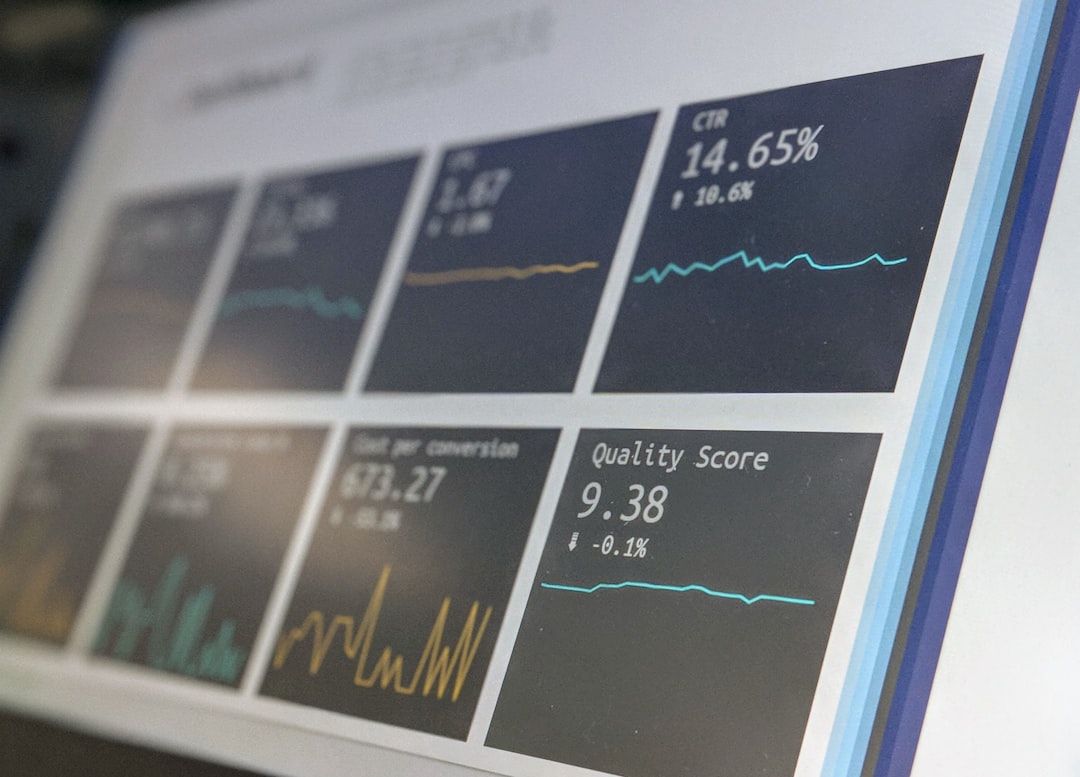
Use TikTok’s native dashboard for the cleanest TikTok data. Use a third-party dashboard when you manage many accounts, need client reports, or want all social channels in one place. That is the simple answer.
TLDR: Native TikTok dashboards are best for pure TikTok truth. Third-party dashboards are best for speed, reports, scheduling, and team work. For example, a small agency managing 8 TikTok accounts may save 5 to 10 hours a month with automated reports. But a solo creator checking video watch time, follower growth, and traffic sources may get 90% of what they need inside TikTok for free.
Contents
- 1 Native vs third-party dashboards: the quick vibe check
- 2 Analytics: native is sharper, third-party is broader
- 3 Reporting: third-party tools win big
- 4 Scheduling: native is okay, third-party is smoother
- 5 Account management: third-party wins for teams
- 6 Ads reporting: native is still the boss
- 7 Cost: native is free, third-party is not
- 8 Which one should you choose?
- 9 The best setup is often both
Native vs third-party dashboards: the quick vibe check
TikTok gives you built-in tools. These include TikTok Analytics, TikTok Studio, TikTok Business Center, and TikTok Ads Manager. They show what TikTok knows about your account.
Third-party dashboards sit on top. They pull TikTok data through an API. Then they mix it with data from Instagram, YouTube, Facebook, LinkedIn, ads, websites, and more.
So the choice is not really “which is better?” It is more like this:
- Need exact TikTok metrics? Use native.
- Need reports for clients? Use third-party.
- Need to schedule many posts? Use third-party.
- Need deep ad data? Use native TikTok Ads Manager.
- Need one screen for 10 brands? Use third-party.

Analytics: native is sharper, third-party is broader
Native TikTok analytics are usually the most accurate. That makes sense. The numbers come right from TikTok. You can see views, likes, comments, shares, watch time, audience details, follower growth, and traffic sources.
You may also see video retention. That is gold. It tells you when people leave. If viewers drop at second 3, your hook is weak. Painful? Yes. Useful? Also yes.
Third-party dashboards are better when you want to compare channels. Say one TikTok gets 40,000 views. Nice. But what if the same short video got 16,000 views on Instagram Reels and 9,000 on YouTube Shorts? A third-party dashboard can show that side by side.
The annoying part is data mismatch. Honestly, it feels like every dashboard has its own personality. TikTok may show 12,430 views. Your third-party tool may show 12,280. That small gap can cause big client questions.
Why does this happen?
- API delays
- Different refresh times
- Metric naming differences
- Privacy limits
- Data sampling
For everyday checks, third-party data is fine. For a board report or ad spend review, check native data too.
Reporting: third-party tools win big
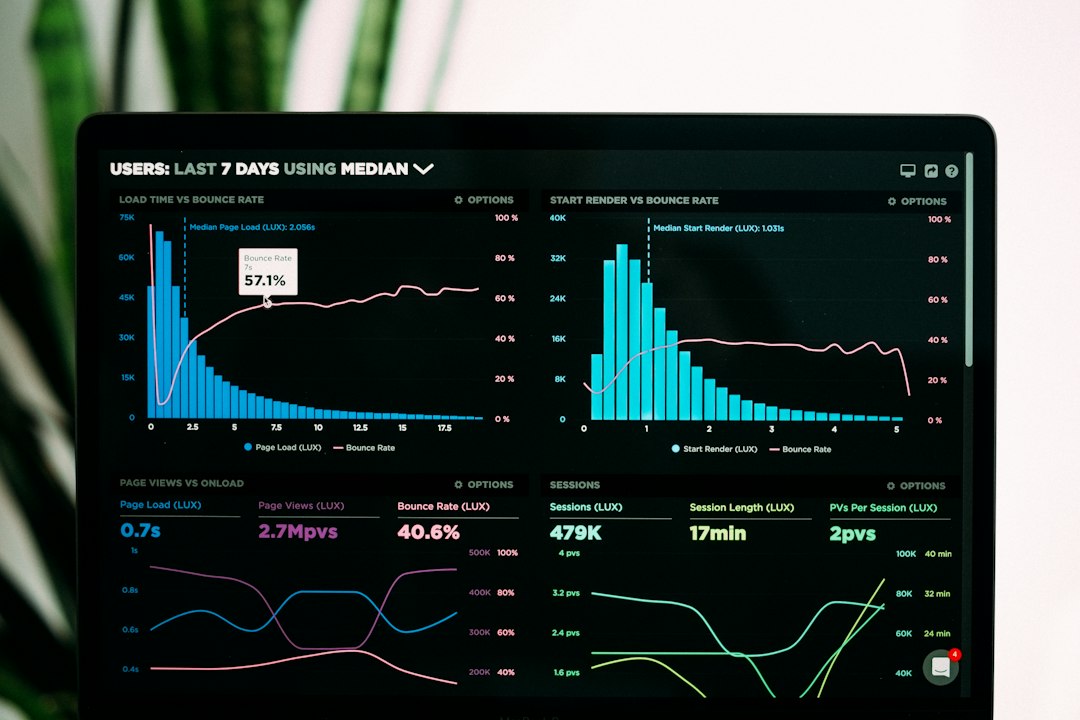
This is where third-party dashboards shine. Native TikTok reports are useful, but they are not always pretty. They are also not made for sending polished monthly updates to clients.
A third-party tool can build reports with charts, notes, logos, date ranges, and simple summaries. Some tools send reports on autopilot. That is huge.
Picture this. You manage 5 TikTok accounts. Each client wants a monthly report. If each report takes 45 minutes by hand, that is 3 hours and 45 minutes. Every month. Gone. Poof. A third-party dashboard can cut that to 20 minutes of review time.
That matters if you run an agency. It also matters if your boss asks, “So, how did TikTok do?” at 4:55 p.m. on Friday. Rude timing. Very real.
A good report should show:
- Top videos by views, watch time, and engagement
- Follower growth over time
- Engagement rate per post
- Posting volume by week
- Best posting times
- Ad results if paid campaigns are active
Native TikTok tools are more like the kitchen. Third-party reports are the plated meal.
Scheduling: native is okay, third-party is smoother
TikTok has native scheduling for certain account types and workflows. It works. It is not flashy. You upload a video, set a time, add details, and move on.
But third-party scheduling is often easier for busy teams. You can plan TikTok posts beside Instagram Reels, YouTube Shorts, Pinterest, and more. That helps you see the whole content calendar.
This is useful when one video has many lives. One clip can become:
- A TikTok post
- An Instagram Reel
- A YouTube Short
- A LinkedIn teaser
- A story post
With a third-party scheduler, your week looks less like a junk drawer. You can drag posts around. You can spot gaps. You can keep campaigns tidy.
The catch is that TikTok features can be limited outside TikTok. Some sounds, stickers, effects, product tags, or editing options may not work the same way. If your content relies on trending audio or native effects, finish the post inside TikTok.
Expect to waste time on little things too. A caption may need tweaking. A thumbnail may not display as expected. A published post may take 30 seconds longer to appear in the calendar. Not tragic. Still annoying.
Account management: third-party wins for teams
If you run one TikTok account, native tools are simple. You sign in. You check stats. You post videos. Life is good.
If you manage 12 accounts, life gets crunchy. Logging in and out is not fun. Neither is chasing approvals in chat threads named “FINAL final TikTok edit v7.”
Third-party dashboards help teams stay sane. Many offer roles, approvals, shared calendars, comments, and client access. That keeps work in one place.
Common team features include:
- User permissions: Give people the right level of access.
- Approval flows: Review posts before they go live.
- Content calendars: See what is planned.
- Asset libraries: Store videos, captions, and hashtags.
- Client views: Let clients approve without touching everything.
Native TikTok account tools can handle business access. TikTok Business Center helps with ad accounts, people, assets, and permissions. It is strong for TikTok-only work. But it does not manage your full social operation.

Ads reporting: native is still the boss
For TikTok ads, TikTok Ads Manager is the main source. It gives campaign, ad group, and ad level data. You can check cost per click, conversions, spend, CPM, CTR, ROAS, and pixel events.
Third-party dashboards are useful for combining ad data with organic data. That gives a fuller view. You can answer questions like, “Did the paid boost help follower growth?” or “Did organic comments increase after the ad campaign?”
Still, do not treat third-party ad numbers as the final word. Billing, attribution, and conversion tracking should be checked inside TikTok Ads Manager.
Cost: native is free, third-party is not
Native TikTok dashboards are free. That is a big deal. If you are a creator, small shop, or early brand, start there.
Third-party tools cost money. Some are cheap. Some are very not cheap. The price often depends on users, profiles, reports, history, and features.
Ask yourself one simple question:
Will this tool save more money than it costs?
If a $99 tool saves 6 hours each month, it may be worth it. If you check one account twice a week, maybe not.
Which one should you choose?
Choose native TikTok dashboards if:
- You manage one or two accounts.
- You need the most direct TikTok data.
- You care about watch time and video retention.
- You run TikTok ads often.
- You do not need fancy reports.
Choose third-party dashboards if:
- You manage several brands or clients.
- You need automated reports.
- You want one calendar for many channels.
- You work with a team.
- You compare TikTok with other platforms.
The best setup is often both
The smartest setup is usually a mix. Use TikTok’s native dashboard as your source of truth. Use a third-party dashboard as your command center.
That gives you accuracy and speed. Native tools show the deepest TikTok details. Third-party tools make the work easier to share, schedule, and explain.
So do not force a dramatic breakup. Let both tools do their jobs. TikTok can be the microscope. Your third-party dashboard can be the control room.
Simple rule: native for accuracy, third-party for workflow. That is the whole game.

