
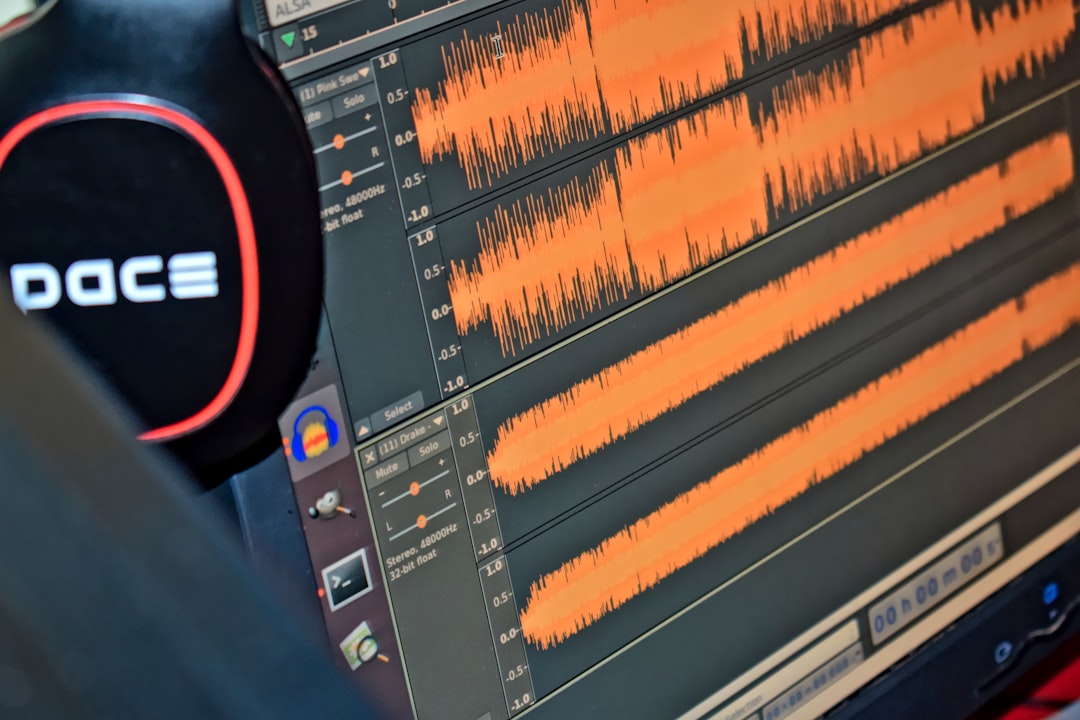
Use VLC when you only need to hear a sound clip repeat, and use Audacity when you need to edit, trim, export, or build a seamless infinite loop. VLC is faster for playback. Audacity is better for production work because you can see the waveform, remove clicks, set loop regions, and export a cleaner file. Audacity also supports loop playback directly in its workflow [source: Audacity Manual].
TLDR: If you have a 10-second rain sound that must play all night, VLC is the quickest answer: open the file, turn on repeat, and let it run. If you have a 7-second game ambience clip with an audible pop every time it restarts, Audacity is the better tool because you can fix the start and end points. In a simple user case, a meditation teacher preparing a 20-minute session can loop a 30-second background tone 40 times in Audacity, then export one finished audio file instead of relying on live playback settings.
Contents
- 1 Audacity vs. VLC: The Short Decision
- 2 How to Loop Audio Infinitely in VLC
- 3 How to Loop Audio Infinitely in Audacity
- 4 How to Make a Seamless Loop in Audacity
- 5 Which Tool Is Faster?
- 6 Which Tool Sounds Better?
- 7 Can You Export an Infinite Loop?
- 8 Practical Recommendations
- 9 Common Problems and Fixes
- 10 Final Verdict
Audacity vs. VLC: The Short Decision
Choose VLC if your goal is simple: play the same clip again and again. This is ideal for sound checks, classroom use, background ambience, rehearsal tracks, white noise, or a short alert tone during testing.
Choose Audacity if the loop has to sound polished. That means no clicks, no dead air, no harsh restart, and no volume jump at the loop point. Audacity takes longer, but it gives you control. Honestly, it feels like overkill for casual listening, but it is the right choice when the final audio matters.
How to Loop Audio Infinitely in VLC
VLC is the quickest method. It does not change the audio file. It only repeats playback inside the player. That is both its strength and its limit.
- Open VLC Media Player.
- Go to Media > Open File.
- Select your sound clip.
- Start playback.
- Click the loop button on the control bar until it shows repeat mode.
- Leave VLC running.
On many VLC layouts, the loop icon looks like two curved arrows. Click it once to repeat a playlist. Click it again to repeat a single track. The exact behavior can vary by version and interface, which is mildly annoying when you just want one clip to repeat without thinking about it. VLC’s playlist and repeat options are described in its documentation [source: VideoLAN].
For a single sound clip, the safest method is to put only that file in the playlist. Then enable repeat. If there are other files in the playlist, VLC may repeat the whole list instead of only the clip you care about.
Best Uses for VLC Looping
- Ambient playback: rain, ocean, fan noise, café background sound.
- Testing: checking speakers, alarms, call tones, or audio routing.
- Practice: repeating a backing track or pronunciation sample.
- Events: playing a waiting-room sound or short intro music.
The catch is simple: VLC does not fix bad loop points. If the file has silence at the end, you will hear that gap every cycle. If the waveform jumps sharply from the end back to the start, you may hear a click.
How to Loop Audio Infinitely in Audacity
Audacity is not just a player. It is an editor. That makes it better for preparing loops that need to sound smooth. You can loop during playback, trim the file, apply fades, and export the result.
- Open Audacity.
- Import your audio using File > Import > Audio.
- Zoom in on the waveform.
- Find a clean start point and end point.
- Select the section you want to loop.
- Use loop playback to test the selection.
- Adjust the selection until the repeat sounds natural.
- Export the finished audio if you need a reusable file.
The real work happens at the join. A good loop should restart without calling attention to itself. If you hear a pop, click, or sudden silence, the loop point needs work.
How to Make a Seamless Loop in Audacity
Start by trimming obvious silence. Many clips have a fraction of a second of empty audio at the beginning or end. That gap may seem tiny, but it becomes irritating after 30 repeats.
Next, use the waveform as a guide. Try to cut at a zero crossing, where the waveform crosses the center line. This reduces clicks because the audio starts and ends closer to silence. If that sounds too technical, just zoom in until you see the wave clearly, then place the cut where the line is near the middle.
You can also use a short fade. A tiny fade in at the start and fade out at the end can hide rough edges. Keep it short. A long fade may make the loop pulse or breathe in an obvious way.
For music, try looping a complete bar or phrase. For nature sounds, use a section with steady energy. Avoid cutting right after a loud bird call, footstep, cymbal hit, or spoken word. Those sounds expose the repeat.
Which Tool Is Faster?
VLC wins on speed. You can often start an infinite loop in under 20 seconds if the file is ready. Open the file. Press play. Turn on repeat. Done.
Audacity takes more time. Expect to spend 2 to 10 minutes on a short clip if you want it clean. It drives me crazy that one tiny click can take several test plays to locate, but that is normal audio work. The payoff is a loop you can trust.
Which Tool Sounds Better?
Audacity usually produces the better result because it lets you repair the file. VLC plays what it is given. If the loop is rough, VLC will repeat that roughness forever.
This matters more than people expect. A click every 8 seconds becomes 450 clicks in an hour. A half-second silence every 12 seconds creates 150 gaps in 30 minutes. Small flaws become obvious when repeated.
Can You Export an Infinite Loop?
Not exactly. Audio files have a length. An “infinite” loop usually means one of two things:
- Playback loop: a player repeats the same file endlessly, as VLC does.
- Extended file: an editor repeats the clip many times, then exports a longer file.
In Audacity, you can duplicate a clip many times to create a long track. For example, duplicate a 15-second sound 80 times to create 20 minutes of audio. This is useful for videos, podcasts, exhibit audio, guided meditation, or installations where you do not want to rely on player settings.
Practical Recommendations
- For everyday listening: use VLC.
- For public playback: prepare the loop in Audacity first.
- For video projects: use Audacity to create a fixed-length audio bed.
- For sleep sounds: VLC is fine if the loop point is already smooth.
- For games or apps: Audacity is the safer choice because bad loop points are very noticeable.
Common Problems and Fixes
Problem: There is a click when the loop restarts.
Fix it in Audacity. Cut closer to a zero crossing or add a tiny fade.
Problem: VLC repeats the playlist, not one file.
Remove other files from the playlist or switch the repeat mode until single-track repeat is active.
Problem: There is a pause between repeats.
Check for silence at the end of the file. Trim it in Audacity. Some playback systems may also add a tiny gap, especially with certain compressed formats.
Problem: The loop feels unnatural.
Pick a different section. A technically clean cut can still sound awkward if the rhythm, ambience, or room tone changes too much.
Final Verdict
VLC is the best tool for instant infinite playback. It is simple, free, and good enough when the audio file already loops well. Audacity is the better tool for making the loop sound professional. Use it when you need to remove silence, fix clicks, match volume, or export a longer track.
The most reliable workflow is to use both. Clean the clip in Audacity first. Then test it in VLC with repeat enabled. If you can leave it running for five minutes without noticing the restart, the loop is probably ready.

