
The fastest safe way to locate a network security key is to check Windows first, then use the router admin page if Windows does not have the password saved. A network security key is usually just your Wi-Fi password, and Microsoft documents that Windows can display it for a network your PC has joined before [source: Microsoft]. Router admin pages are better when you need the current password for the whole home or office. Wi-Fi management apps can help too, but only if they come from your router maker or internet provider.
TLDR: Start with Windows Settings if the computer has connected to the Wi-Fi before. Use the router admin page when you need to confirm or change the password for everyone. For example, in a small office with 12 laptops and 3 printers, checking the router once is faster than asking 15 people to read saved passwords from their devices. Use Wi-Fi apps only when you trust the provider, because a fake “Wi-Fi password finder” app can create a bigger problem than a lost key.
Contents
What a Network Security Key Really Means
A network security key is the password used to join a secured Wi-Fi network. You may also see it called a Wi-Fi password, WPA key, or wireless password. The wording changes. The job is the same.
If you are setting up a phone, printer, smart TV, or laptop, this is the code you type when the device asks to join the wireless network. It is not the router login password in most cases. That is a common mix-up, and it wastes time.
Option 1: Find It in Windows Settings
Use Windows first if your PC is already connected to the Wi-Fi network. This is usually the cleanest route. You do not need to touch the router. You do not need to reset anything. You just need access to the Windows account and, in some cases, administrator approval.
On many Windows 11 systems, try this:
- Open Settings.
- Go to Network & internet.
- Select Advanced network settings.
- Open the related adapter or network options.
- Choose Wireless Properties.
- Open the Security tab.
- Tick Show characters to reveal the key.
On Windows 10, the route is often through Control Panel, then Network and Sharing Center, then your Wi-Fi connection, then Wireless Properties. The exact labels vary a bit by build. It drives me crazy that Microsoft still spreads network settings across old and new screens, but the password is usually there if the network was saved.
Best use case: one user needs the password for one nearby device. For example, you want to connect a tablet to the same home Wi-Fi your laptop already uses.
Weak point: Windows may show only the saved key. If someone changed the router password yesterday, your saved value could be stale. If the PC is no longer connected, it may also be harder to confirm which network profile is correct.
Option 2: Check the Router Admin Page
The router admin page is the strongest source when you need the active Wi-Fi password. It controls the network. If the password was changed there, every device must use the new one.
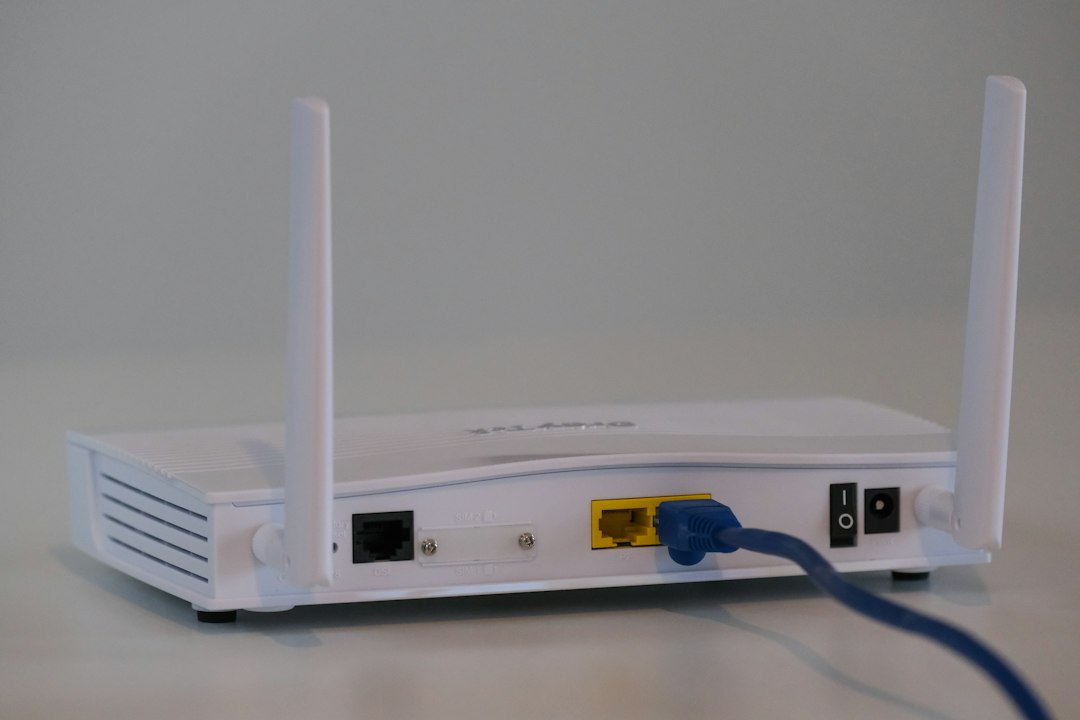
To access it, connect to the router by Wi-Fi or Ethernet. Then open a browser and enter the router address. Common examples include 192.168.0.1, 192.168.1.1, or the address printed on the router label. You will need the router admin username and password. This may be printed on the label, stored in provider paperwork, or set by whoever installed the service.
Once inside, look for sections named:
- Wireless
- Wi-Fi
- Security
- SSID
- WPA2 or WPA3
The Wi-Fi password field may be hidden behind a reveal button. If you change it, expect every phone, TV, camera, printer, and smart speaker to disconnect until updated. That can be a 20-minute job in a normal home. In a busy office, it can take much longer.
Best use case: you manage the network and need the current password or want to replace it with a stronger one. Router brands also provide support pages for login and wireless settings, such as NETGEAR’s router access guidance [source: NETGEAR].
Weak point: you can lock yourself out if you change the wrong setting. Avoid clicking reset unless you mean to wipe custom settings. A factory reset can remove the Wi-Fi name, password, parental controls, and provider settings.
Option 3: Use Wi-Fi Management Apps
Many modern routers come with apps. Examples include apps from Eero, TP-Link, ASUS, Google Nest, Xfinity, and other internet providers. These apps often show the Wi-Fi name and password in a cleaner way than the router page.
Use the official app only. Download it from the router maker or your internet provider. Avoid random tools that claim to “recover any Wi-Fi key.” Honestly, those apps often feel shady before you even install them. Some ask for access they do not need, such as contacts or location history.
Good Wi-Fi apps can help you:
- View the current Wi-Fi password.
- Share a guest network password.
- Rename the network.
- Pause unknown devices.
- Check whether devices are using 2.4 GHz or 5 GHz bands.
Best use case: you have a mesh system or provider-managed router. The app may be faster than typing router IP addresses into a browser.
Which Method Should You Choose?
- Choose Windows Settings when one known PC already connects to the Wi-Fi.
- Choose the router admin page when you need the real current password for the network.
- Choose the official Wi-Fi app when your router is app-managed and you trust the source.
If you cannot find the key anywhere, check the router label. Many routers ship with a default Wi-Fi name and password printed on the bottom or back. If the label password does not work, someone changed it.
For security, use WPA2 or WPA3 when available. Avoid old WEP security. Pick a password with at least 12 characters, mixing words, numbers, and symbols. Do not reuse your email or banking password. A good Wi-Fi key should be easy enough to type, but hard enough that a neighbor cannot guess it.
Final rule: read the key from a trusted place. Windows, the router page, and the official app are the safe choices. Random password finder tools are not worth the risk.

