
You open Marvelous Designer. Your shirt looks amazing. Great fabric. Nice color. Perfect vibe. But… it is way too big. The sleeves swallow the hands. The torso looks like a tent. Don’t worry. This is a super common problem. And it’s easy to fix.
TLDR: If your shirt is too large in Marvelous Designer, you can fix it by adjusting pattern size, using the Edit Pattern tool, tweaking particle distance, shrinking with the transform tool, or resetting the avatar measurements. Start simple. Check scaling and measurements first. Then refine with pattern adjustments and simulation settings for a clean, realistic fit.
Let’s break it down step by step. Simple. Clear. And maybe even a little fun.
Contents
- 1 First: Why Is the Shirt So Big?
- 2 Fix #1: Check the Avatar Size First
- 3 Fix #2: Use the Edit Pattern Tool
- 4 Fix #3: Use the Transform Pattern Tool (Quick Scale)
- 5 Fix #4: Check Particle Distance
- 6 Fix #5: Adjust Seam Lengths
- 7 Fix #6: Review Fabric Presets
- 8 Fix #7: Tweak Arrangement Points
- 9 Quick Comparison: Which Fix Should You Use?
- 10 Advanced Tip: Use Measurement Tape
- 11 Common Mistakes to Avoid
- 12 What If You Want an Oversized Look — But Controlled?
- 13 Step-By-Step Mini Workflow
- 14 Why Fit Matters So Much
- 15 Final Thoughts
First: Why Is the Shirt So Big?
Before fixing anything, pause. Ask yourself one question:
Why is this happening?
Usually, it’s one of these reasons:
- The avatar and garment use different measurement scales.
- You imported a pattern drafted for a larger body.
- You scaled the avatar after creating the shirt.
- The particle distance is too high, making it look bulky.
- You accidentally scaled the garment up.
Good news. Every single one of these has a fix.
Fix #1: Check the Avatar Size First
This is a big one. Always start here.
If your avatar is tiny and your shirt is drafted for a large body, the shirt will float. If your avatar is huge and the shirt is small, it will stretch.
To check:
- Select the Avatar.
- Open the Property Editor.
- Look at the measurements.
Does the avatar match the intended size of your shirt?
If not, you have two choices:
- Resize the avatar.
- Resize the shirt.
Tip: It’s usually better to adjust the garment, not the avatar. Especially if the avatar represents a real human measurement.
Fix #2: Use the Edit Pattern Tool
This is the cleanest and most professional fix.
If the shirt is too large, reduce the pattern pieces directly.
Here’s how:
- Switch to the 2D Window.
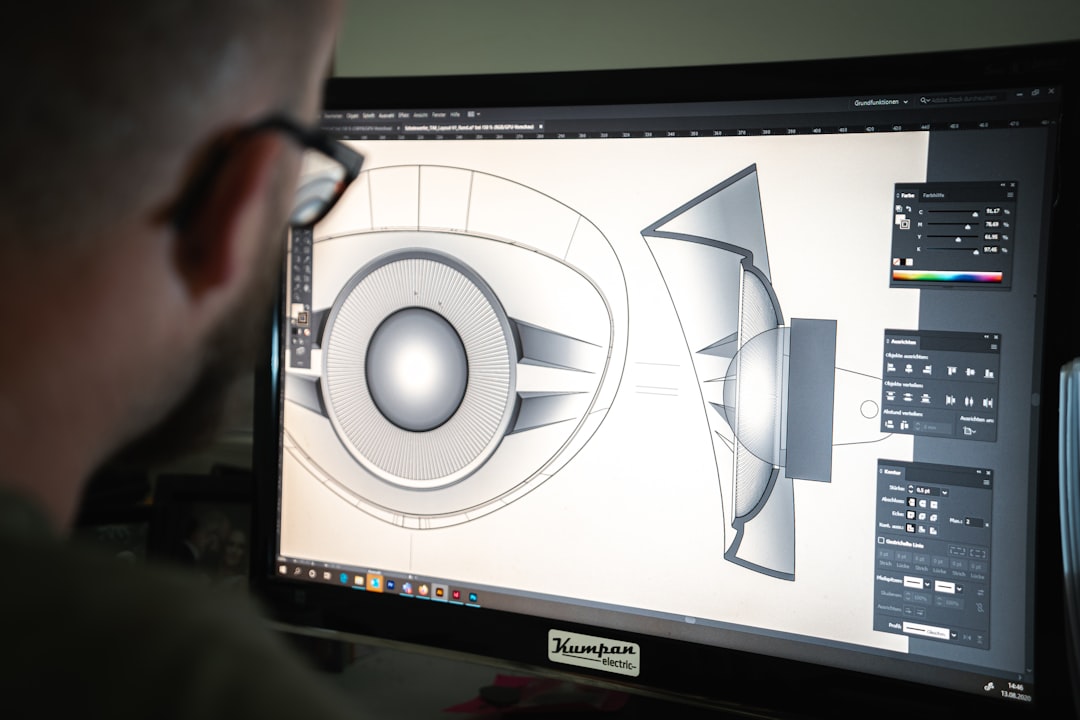
- Select the Edit Pattern Tool (Z key).
- Click on a pattern piece.
- Drag edges inward to reduce size.
Make small adjustments. Then simulate.
Repeat if needed.
Do not over-shrink in one move. Small steps give better control.
Pro Tip: Use Internal Lines as Guides
If your shirt has chest lines, waist lines, or placement guides, use them to keep proportions correct while resizing.
You want balance. Not distortion.
Fix #3: Use the Transform Pattern Tool (Quick Scale)
Need a faster fix?
Try uniform scaling.
- Select all pattern pieces in the 2D window.
- Right-click.
- Choose Scale.
- Reduce percentage (try 95% first).
Simulate. Check fit. Repeat if needed.
This method works best when:
- The whole shirt is too big equally.
- Proportions are correct.
- You just need an overall size reduction.
It’s fast. Efficient. Clean.
Fix #4: Check Particle Distance
Sometimes the shirt isn’t actually too big.
It just looks bulky.
That’s where Particle Distance comes in.
High particle distance = less detail = stiff look.
To adjust:
- Select all pattern pieces.
- Go to the Property Editor.
- Find Particle Distance.
- Reduce it (try 10–20 for final fit).
Lower particle distance makes fabric drape better. It hugs the avatar more naturally.
Suddenly, that “oversized” shirt might fit perfectly.
Fix #5: Adjust Seam Lengths
Here’s something beginners miss.
If seam lines don’t match properly, extra fabric can bunch up. That makes the shirt look bigger than it is.
Check:
- Front and back shoulder seams
- Sleeve cap vs armhole
- Side seams
If one edge is longer than the other, you’ll get gathering.
To fix:
- Use Edit Pattern.
- Adjust curved edges carefully.
- Keep seam lengths balanced.
Clean seams = better fit.
Fix #6: Review Fabric Presets
Heavy fabric behaves differently than light fabric.
If your material is thick, it may push outward.
Try this:
- Switch to a lighter fabric preset.
- Reduce thickness rendering.
- Adjust collision thickness.
Sometimes your shirt isn’t big.
It’s just puffy.
Fix #7: Tweak Arrangement Points
If the shirt started far from the body before simulation, it may settle oddly.
Reset it.
- Delete simulation.
- Reposition pieces closer to avatar.
- Use Arrangement Points carefully.
- Simulate again.
Bad starting placement = weird final result.
Good starting placement = clean fit.
Quick Comparison: Which Fix Should You Use?
| Method | Best For | Skill Level | Speed |
|---|---|---|---|
| Edit Pattern Tool | Precise resizing | Beginner to Advanced | Medium |
| Scale Tool | Uniform overall reduction | Beginner | Fast |
| Particle Distance Adjustment | Improving drape realism | Beginner | Fast |
| Seam Length Correction | Fixing hidden excess fabric | Intermediate | Medium |
| Fabric Preset Change | Reducing puffiness | Beginner | Fast |
If you’re unsure, start with scaling. Then refine with pattern edits.
Advanced Tip: Use Measurement Tape
Want next-level accuracy?
Use the Measurement Tool.
Measure:
- Chest width
- Shirt length
- Sleeve length
Compare to real-world sizing charts.
This keeps your digital garment realistic. Especially useful for production work.
Common Mistakes to Avoid
Let’s save you time.
1. Scaling Only One Piece
If you shrink the front panel but not the back, seams won’t match.
2. Ignoring Simulation After Every Change
Always simulate after adjustments. Always.
3. Over-Correcting
Don’t jump from 100% to 70% scale. Go slowly.
4. Forgetting Symmetry
If using symmetric editing, make sure it’s turned on when needed.
What If You Want an Oversized Look — But Controlled?
Oversized fashion is popular.
Baggy can be stylish. Intentional. Modern.
But there’s a difference between:
- Oversized by design
- Oversized by mistake
For intentional oversized fit:
- Increase width, not just length.
- Adjust shoulder drop properly.
- Extend sleeve width proportionally.
- Increase ease evenly.
Controlled oversizing looks professional.
Random scaling looks sloppy.
Step-By-Step Mini Workflow
If your shirt is too big right now, do this:
- Check avatar size.
- Simulate once to see natural drape.
- Lower particle distance.
- Uniform scale to 95%.
- Simulate again.
- Fine-tune with Edit Pattern.
- Check seam balance.
- Simulate final result.
This process fixes 90% of sizing issues.
Why Fit Matters So Much
In Marvelous Designer, small changes matter.
A 1 cm difference can:
- Change silhouette.
- Shift wrinkles.
- Alter realism.
- Impact animation.
Clothing is architecture. In fabric form.
Precision creates beauty.
Final Thoughts
If your Marvelous Designer shirt is too large, relax. You did not break anything.
This software is powerful. And very forgiving.
Start simple. Check scale. Adjust pattern. Simulate often. Make small changes.
Within minutes, that oversized mess can become a perfectly fitted shirt.
And once you master garment resizing, you unlock something bigger.
Control.
Control over silhouette. Style. Realism. Fashion flow.
Now go fix that shirt.
Your avatar is waiting.

