
Getting kicked out of a ranked match because of an error code is never fun. Especially when you are in the middle of an intense round in Rainbow Six Siege. One common issue players run into is Error Code 4-0xFFF0BE25. It looks scary. But the good news? It is usually easy to fix.
TL;DR: Error Code 4-0xFFF0BE25 is usually caused by connection or server issues. Restarting your game, checking your internet, or verifying game files often solves it fast. You can also try updating your game, resetting your router, or disabling background apps. Most players fix it in under 15 minutes.
Let’s break it down in a simple way. Below are 7 easy fixes you can try right now.
Contents
- 1 1. Restart the Game (Yes, Really)
- 2 2. Check Ubisoft Server Status
- 3 3. Restart Your Router and Modem
- 4 4. Verify Game Files
- 5 5. Update the Game and Your System
- 6 6. Disable Background Apps
- 7 7. Change Your DNS Settings
- 8 Quick Comparison Chart
- 9 What Causes Error Code 4-0xFFF0BE25?
- 10 When to Contact Ubisoft Support
- 11 Final Thoughts
1. Restart the Game (Yes, Really)
This sounds too simple. But it works more often than you think.
Sometimes the game loses connection to Ubisoft servers. Or it fails to load network data properly. A fresh restart forces everything to reload.
- Close Rainbow Six Siege completely.
- Exit Ubisoft Connect.
- Wait 30 seconds.
- Launch everything again.
This clears minor glitches. It is fast. It is easy. Try this first before anything else.
2. Check Ubisoft Server Status
Sometimes the problem is not you.
If Ubisoft servers are down, you cannot fix that on your end. The error code may appear because the game cannot connect properly.
Here is what to do:
- Visit the official Ubisoft server status page.
- Check Rainbow Six Siege server status.
- Look at social media for outage reports.
If servers are down, your only option is to wait. Grab a snack. Touch some grass. Come back later.
Pro tip: If your friends also cannot connect, it is probably a server issue.
3. Restart Your Router and Modem
Internet hiccups cause this error a lot.
Your connection may look fine. But small packet loss or DNS issues can trigger error code 4-0xFFF0BE25.
Here is the proper way to reset your network:
- Turn off your PC or console.
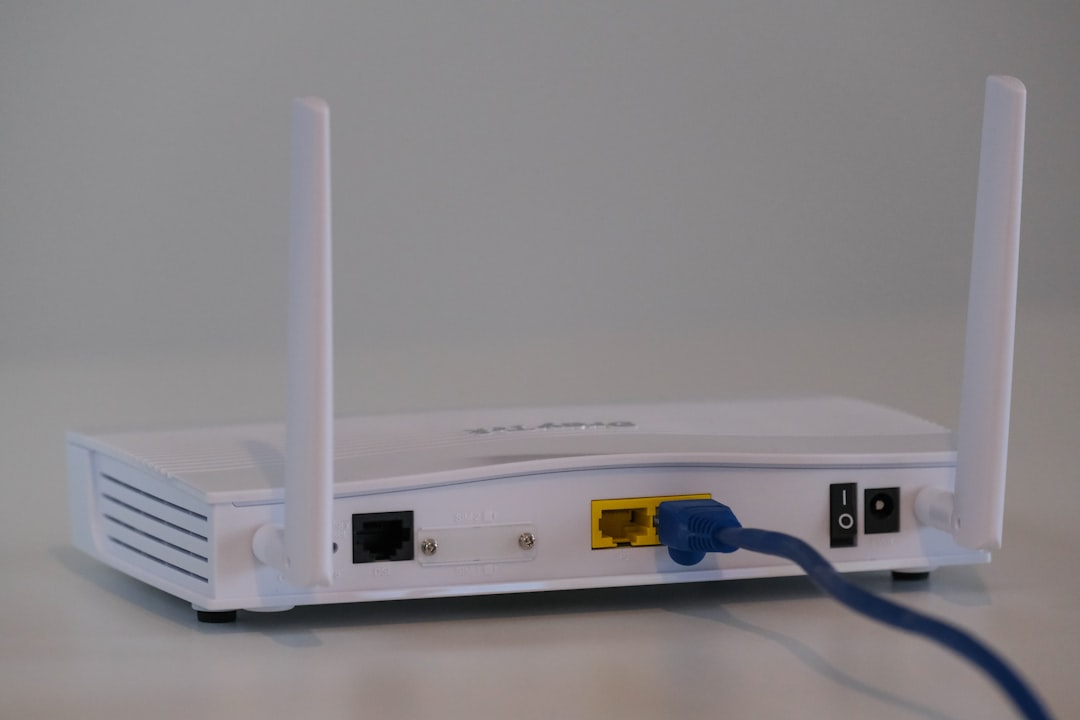
- Unplug your router and modem.
- Wait 2–3 minutes.
- Plug them back in.
- Wait until all lights stabilize.
- Turn your device back on.
This refreshes your connection completely. It also gives you a new IP address in many cases.
Avoid using Wi-Fi if possible. A wired Ethernet connection is more stable for Siege.
4. Verify Game Files
Corrupted or missing files can trigger strange errors.
If something failed during an update, the game may not connect properly.
To verify files on PC:
- Open Ubisoft Connect.
- Go to Games.
- Select Rainbow Six Siege.
- Click Properties.
- Select Verify Files.
On Steam:
- Right-click the game in your Library.
- Click Properties.
- Go to Installed Files.
- Select Verify integrity of game files.
The launcher will scan and repair damaged files automatically.
This may take 5–20 minutes. But it is worth it.
5. Update the Game and Your System
Running outdated software is asking for trouble.
Sometimes error 4-0xFFF0BE25 appears because your game version does not match server expectations.
Make sure:
- Your game is fully updated.
- Ubisoft Connect is updated.
- Your console has the latest firmware.
- Windows or your OS is updated.
Updates fix bugs. They improve stability. And they patch security holes.
Do not skip them.
6. Disable Background Apps
Some applications interfere with network communication.
Common troublemakers include:
- VPN software
- Firewalls
- Antivirus with strict filtering
- Bandwidth limiter apps
- Download managers
Try temporarily disabling them. Then launch Siege again.
If it works, you found the problem.
You may need to whitelist Rainbow Six Siege in your firewall settings.
Important: Re-enable your security software after testing.
7. Change Your DNS Settings
This fix is slightly more technical. But still simple.
DNS servers translate website and server names into IP addresses. If your DNS is slow or unstable, connections fail.
You can switch to public DNS like:
- Google DNS: 8.8.8.8 and 8.8.4.4
- Cloudflare DNS: 1.1.1.1 and 1.0.0.1
On Windows:
- Go to Network Settings.
- Click Change Adapter Options.
- Right-click your connection.
- Select Properties.
- Click Internet Protocol Version 4.
- Enter the DNS numbers manually.
Save. Restart your PC. Launch the game.
This often improves connection stability immediately.
Quick Comparison Chart
| Fix | Difficulty | Time Needed | Best For |
|---|---|---|---|
| Restart Game | Very Easy | 2 Minutes | Minor glitches |
| Check Server Status | Very Easy | 1 Minute | Server outages |
| Restart Router | Easy | 5 Minutes | Connection issues |
| Verify Game Files | Easy | 10–20 Minutes | Corrupted files |
| Update System | Easy | 5–15 Minutes | Version mismatch |
| Disable Background Apps | Medium | 5 Minutes | Software conflicts |
| Change DNS | Medium | 10 Minutes | DNS instability |
What Causes Error Code 4-0xFFF0BE25?
Let’s simplify it.
This error usually means the game failed to connect properly to Ubisoft servers.
Main causes include:
- Unstable internet
- Server outages
- Corrupted files
- Outdated game versions
- Network interference from software
It is rarely something serious. That is good news.
When to Contact Ubisoft Support
If you tried everything above and nothing works, then it may be account-related.
Contact support if:
- The error persists for days.
- Only your account cannot connect.
- You see additional error messages.
Send them:
- A screenshot of the error
- Your platform details
- Your region
- The fixes you already tried
This speeds up the process.
Final Thoughts
Error Code 4-0xFFF0BE25 looks intimidating. But it is usually harmless.
Most players fix it with a restart. Or a quick router reset.
Work through the list step by step. Start simple. Move to advanced fixes only if needed.
You will likely be back in the game before your squad finishes roasting you.
Stay calm. Stay tactical. And may your next ranked match be error-free.

