
The fastest way to improve document review is to make every comment, highlight, and decision visible inside the PDF itself. A review team should stop sending vague email notes like “see page 12” and use anchored annotations that point to the exact sentence, clause, figure, or number under discussion.
TLDR: PDF comments and highlights help reviewers cut confusion, reduce repeat edits, and keep approvals moving. For example, a legal team reviewing a 42-page vendor contract can tag risks in yellow, assign clause questions to counsel, and resolve comments after approval. Internal review cycles often shrink by 25% to 40% when teams replace email threads with structured PDF annotations. The simplest rule is this: every issue should live where the issue appears.
Contents
- 1 Why PDF Comments Work So Well
- 2 Core Types of PDF Comments and Highlights
- 3 Create a Simple Annotation Code
- 4 Assign Ownership Inside the Comment
- 5 Use Reply Threads, Not Side Conversations
- 6 Filter, Sort, and Resolve Comments
- 7 Set Rules Before the Review Begins
- 8 Build a Repeatable PDF Review Workflow
- 9 Common Mistakes to Avoid
- 10 FAQ
Why PDF Comments Work So Well
PDFs are still the default format for contracts, reports, proposals, manuals, policy drafts, and design proofs. They keep layout intact. They open almost everywhere. They also create one annoying problem: feedback gets scattered across email, chat, screenshots, and meeting notes.
It drives reviewers crazy that a basic wording change can take 30 extra seconds to find because someone wrote “fix the intro” without marking the page. Multiply that by 80 comments, and the review turns into a slow hunt.
PDF comments solve this by attaching feedback to the source text. Highlights show what matters. Sticky notes explain the issue. Reply threads capture discussion. Status labels show what is finished. A reviewer does not need to guess what another person meant.
Core Types of PDF Comments and Highlights
A clean workflow starts with using the right markup for the right task. Common tools include:
- Highlights: Best for marking key phrases, risky clauses, facts to verify, or text that needs approval.
- Sticky notes: Useful for longer feedback, questions, and context that does not fit in the margin.
- Strikethrough: Clear for text that should be removed.
- Underline: Helpful for text that needs attention but should not be deleted.
- Text replacement notes: Best for direct edits, such as changing “may” to “shall”.
- Drawing tools: Useful for diagrams, screenshots, layouts, and tables.
- Stamps: Good for review states such as Approved, Rejected, or Needs Revision.
Teams should avoid using one tool for every issue. A yellow highlight with no comment may mean approval, concern, or confusion. That ambiguity slows the next reviewer.
Create a Simple Annotation Code
The best review systems are boring on purpose. They use a short, shared code that every team member understands.
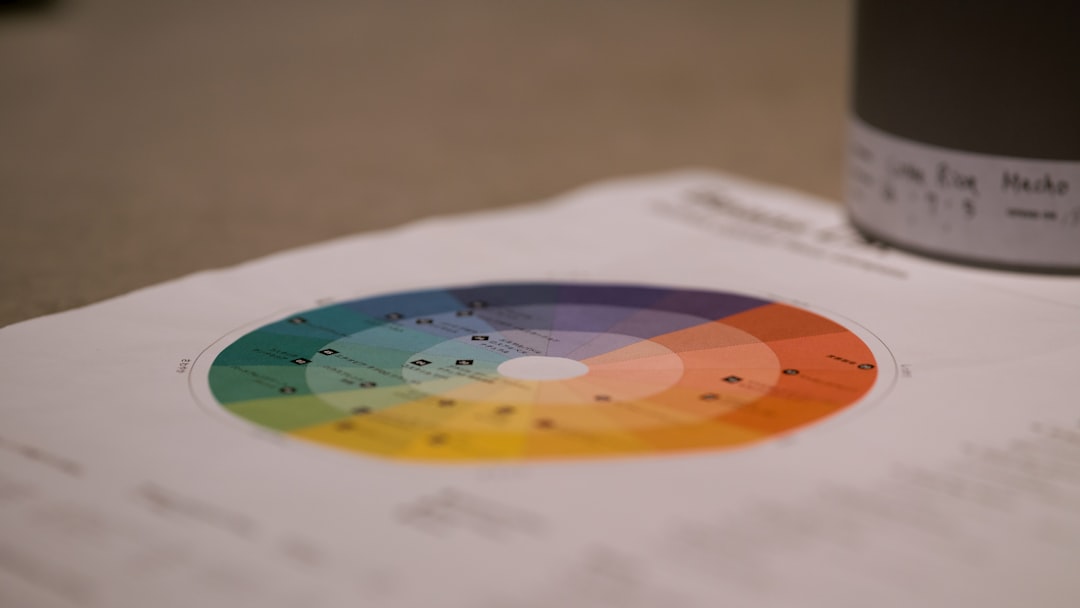
A practical color system might look like this:
- Yellow: Needs review or confirmation.
- Red: Error, legal risk, compliance issue, or blocker.
- Blue: Question for a specific person or department.
- Green: Approved text or completed change.
- Purple: Style, formatting, or brand issue.
This structure prevents comment fatigue. A project manager can scan the document and spot the red blockers first. A designer can filter purple notes. A subject expert can answer blue questions without reading every line.
Assign Ownership Inside the Comment
Each serious comment should name an owner. A note that says “Check this number” is weak. A better note says “Finance team: confirm whether the Q3 margin should be 18.4% or 19.1%.”
Specific ownership removes guesswork. It also stops the familiar review problem where five people see a comment and assume someone else will handle it.
Strong comments usually include three parts:
- The issue: What is wrong or unclear.
- The owner: Who should respond.
- The action: What should happen next.
For example: “Legal: please confirm whether this termination clause matches the master services agreement. If not, suggest revised wording.” That comment is clear, assigned, and useful.
Use Reply Threads, Not Side Conversations
PDF reply threads keep the discussion attached to the disputed text. That sounds obvious, but many teams still drag the debate into chat. Then someone updates the PDF while another person responds in email. Suddenly, there are three versions and no one trusts any of them.
Comments should hold the full decision trail. If a reviewer objects, the objection belongs in the comment thread. If an editor makes the change, the editor should reply with “Updated” or “Resolved in version 3.” If a decision is made in a meeting, the decision should be copied back into the PDF.
This habit makes audits easier. It also protects teams when clients or executives ask why a change was made.
Filter, Sort, and Resolve Comments
Large PDFs can carry hundreds of annotations. Without filtering, review becomes a mess. Most PDF editors allow comments to be sorted by page, author, date, color, status, or type.
A strong review flow might use these stages:
- Open: New comment that needs action.
- In progress: Someone is handling it.
- Answered: A response has been provided.
- Resolved: The issue is complete.
- Rejected: The suggestion was considered but not accepted.
Resolved comments should not always be deleted right away. They can provide a useful record until final approval. After publication, the team can archive a marked-up review copy and keep a clean final PDF for distribution.
Set Rules Before the Review Begins
Good PDF review does not depend only on software. It depends on rules. Before sending the file, the document owner should state the review deadline, the feedback scope, the markup code, and the approval process.
For example, a marketing manager might write: “Please review only claims, pricing, and compliance language by Thursday at 3 p.m. Use red for blockers, blue for questions, and green for approved sections.”
This prevents broad, late-stage edits. Honestly, it feels like punishment when a reviewer rewrites the tone of a nearly approved document two hours before launch. Clear scope keeps feedback useful.
Build a Repeatable PDF Review Workflow
A reliable workflow may look like this:
- Prepare the PDF: Export a clean file with page numbers, bookmarks, and readable text.
- Define review roles: Assign legal, technical, financial, editorial, and final approver roles.
- Share instructions: Include the color code, deadline, and scope.
- Collect comments in one file: Avoid parallel review copies when possible.
- Filter by category: Address blockers first, then questions, then style edits.
- Reply to every open item: No silent changes.
- Mark status clearly: Resolved, rejected, or pending.
- Archive the marked version: Keep the review history for records.
Common Mistakes to Avoid
Some habits make PDF review slower than it needs to be. The worst one is vague feedback. Comments such as “awkward”, “fix”, or “wrong?” create more work for the editor.
Another mistake is over-highlighting. If half the page is yellow, nothing stands out. Reviewers should highlight only the exact words that need action.
Teams should also avoid mixing final approval with early brainstorming. A draft review can allow broad notes. A final review should focus on accuracy, risk, and sign-off. Different stages need different comment rules.
FAQ
What is the best way to use highlights in a PDF review?
Highlights should mark exact text that needs attention. Each highlight should include a short comment if the meaning is not obvious. Color rules help reviewers understand priority at a glance.
Should resolved PDF comments be deleted?
Not during active review. Resolved comments create a decision trail. After final approval, the team can save one marked archive copy and distribute a clean version.
How can a team avoid duplicate comments?
Teams should use one shared review file when possible. They should also sort comments by page and scan existing notes before adding new ones.
Can PDF comments replace meetings?
They can replace many status meetings. Complex disputes may still need a call, but the final decision should be entered back into the PDF comment thread.
What makes a PDF comment effective?
An effective comment is specific, assigned, and actionable. It states the problem, names the owner, and explains the requested next step.

