
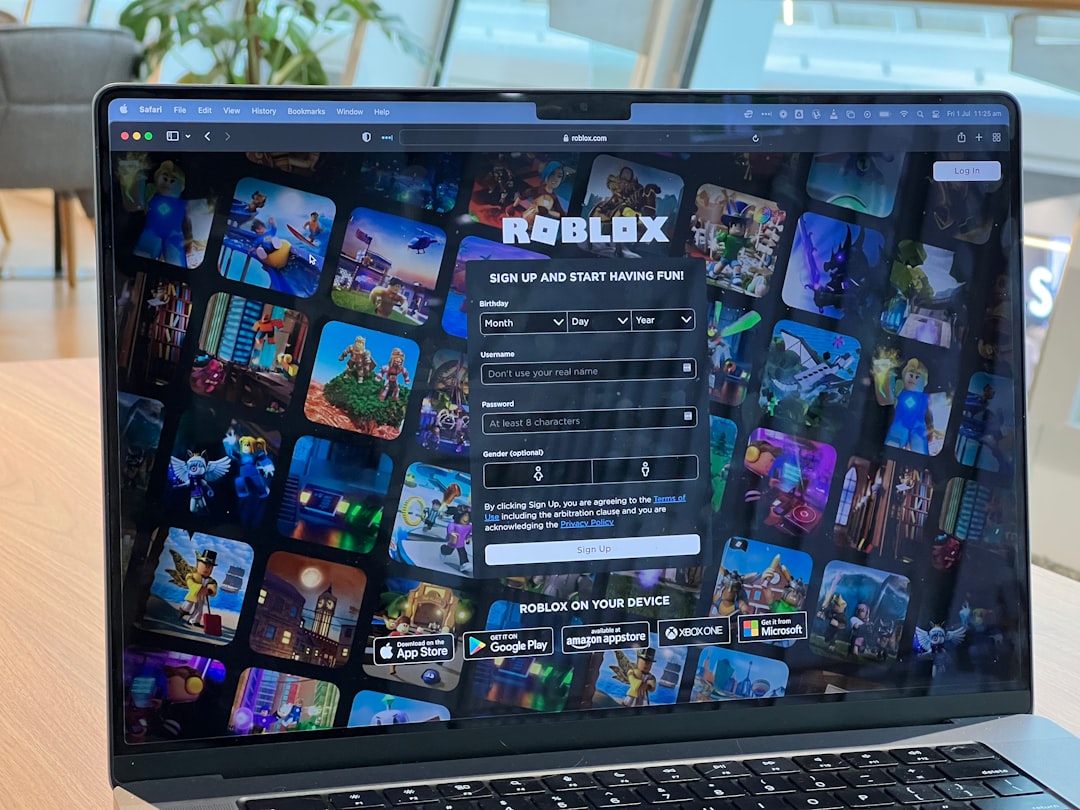
Roblox is fun until a weird message pops up and blocks the party. One common grumpy gremlin is the Roblox HTTP Error. It may show up when you try to log in, join a game, load the website, open the app, buy Robux, or connect to a server. Do not panic. This guide will help you fix it with simple steps.
TLDR: A Roblox HTTP Error usually means Roblox, your internet, your device, or your browser is having trouble talking to the server. First, check if Roblox is down. Then restart your router, clear cache, update Roblox, and turn off VPNs or ad blockers. If nothing works, wait a bit and contact Roblox Support.
Contents
- 1 What Is a Roblox HTTP Error?
- 2 Step 1: Check If Roblox Is Down
- 3 Step 2: Restart Roblox
- 4 Step 3: Restart Your Device
- 5 Step 4: Check Your Internet Connection
- 6 Step 5: Clear Browser Cache and Cookies
- 7 Step 6: Try a Different Browser
- 8 Step 7: Turn Off Extensions
- 9 Step 8: Disable VPN or Proxy
- 10 Step 9: Update Roblox
- 11 Step 10: Check Date and Time Settings
- 12 Step 11: Check Firewall and Antivirus Settings
- 13 Step 12: Flush DNS on Windows
- 14 Step 13: Change DNS Servers
- 15 Step 14: Check Roblox Account Issues
- 16 Step 15: Try Another Network
- 17 Quick Fix Checklist
- 18 When Should You Contact Roblox Support?
- 19 Final Thoughts
What Is a Roblox HTTP Error?
An HTTP Error means something went wrong during an internet request. Think of it like sending a pizza order to Roblox. Your device says, “I want to join this game.” Roblox should say, “Sure, come in.” But sometimes the message gets lost, blocked, or answered with a big digital “nope.”
That is when you see an error. It might look scary. But most of the time, it is not a big deal. It is usually caused by a connection problem, a browser issue, a server issue, or a setting that is getting in the way.
You may see errors like:
- HTTP 400 – Bad request. Your device sent something odd.
- HTTP 403 – Forbidden. Access is blocked.
- HTTP 404 – Not found. The page or file is missing.
- HTTP 500 – Server error. Roblox may be having trouble.
- HTTP 503 – Service unavailable. Servers may be busy.
Now let us fix the gremlin.
Step 1: Check If Roblox Is Down
Before you start clicking every button like a mad scientist, check if Roblox is working for everyone. Sometimes the problem is not you. It is Roblox. Servers can be busy. Updates can break things. Outages happen.
Visit the official Roblox Status page. You can also check trusted outage websites or social media. If many players are yelling into the void, it is probably a server issue.
If Roblox is down, there is not much to do except wait. Grab a snack. Touch grass. Or stare at the loading screen with dramatic music in your head.
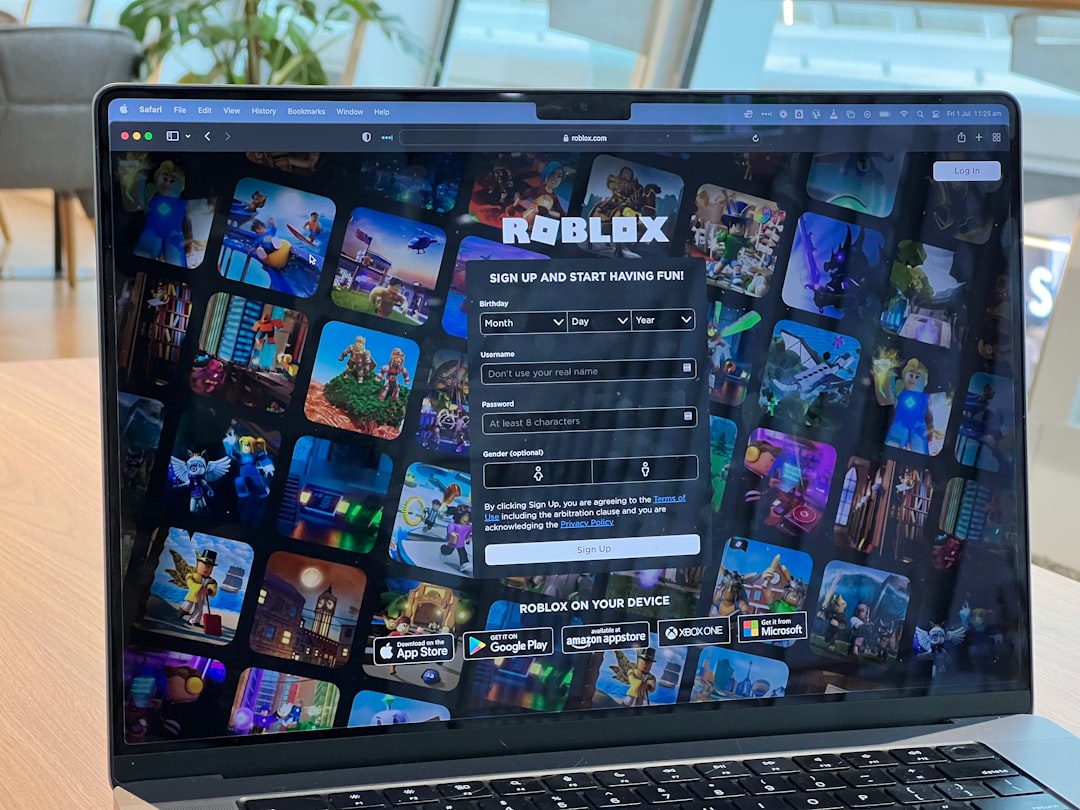
Step 2: Restart Roblox
This sounds too easy. But it works more often than you think.
Close Roblox fully. Do not just minimize it. On a phone, swipe it away from recent apps. On a computer, close the Roblox Player and the browser. Then open it again.
Small app glitches are like sleepy cats. They get stuck in weird places. A restart gives them a tiny reset.
Step 3: Restart Your Device
If closing Roblox does not work, restart your device. This clears temporary bugs. It refreshes your network connection. It also gives your device a little nap.
Use this step for:
- Windows PCs
- Mac computers
- iPhones
- Android phones
- Tablets
- Consoles
After restarting, open Roblox again. Try logging in or joining a game.
Step 4: Check Your Internet Connection
Roblox needs a stable connection. If your Wi-Fi is wobbling like jelly, Roblox may throw an HTTP Error.
Try these quick internet fixes:
- Turn Wi-Fi off and on again.
- Move closer to the router.
- Restart your router.
- Use a wired Ethernet cable if possible.
- Try mobile data, if you are on a phone.
- Ask if other people are downloading huge files.
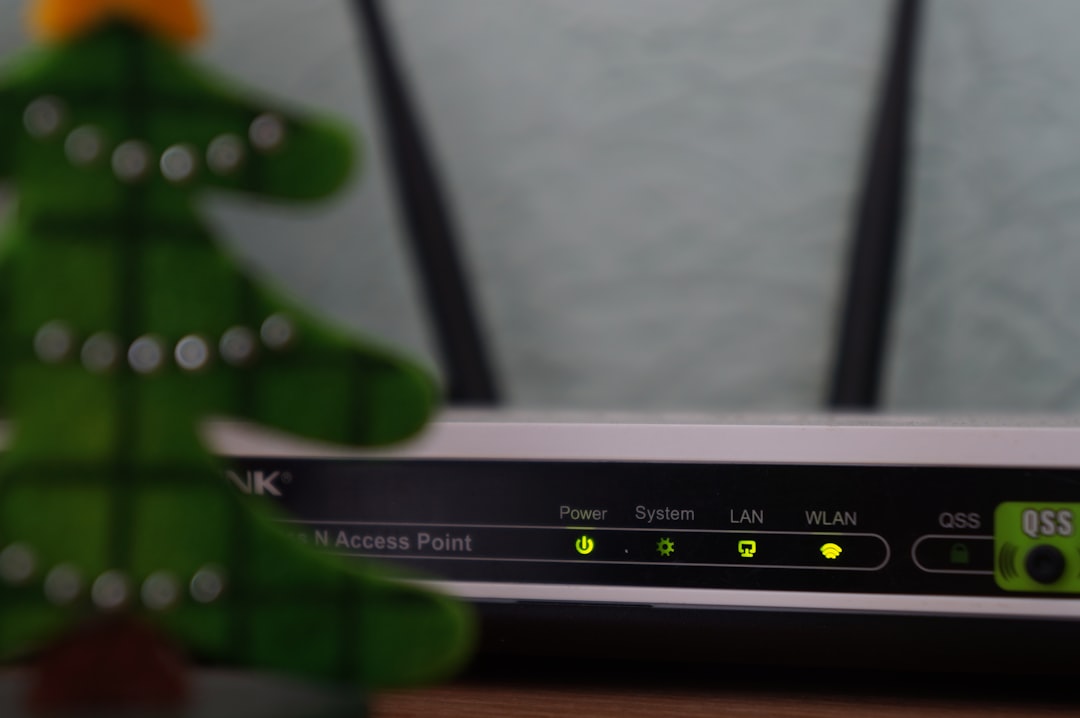
Restarting your router is simple. Unplug it. Wait 30 seconds. Plug it back in. Wait for the lights to calm down. Then try Roblox again.
If your internet works on other sites but Roblox does not, keep going. The detective work continues.
Step 5: Clear Browser Cache and Cookies
If you use Roblox in a browser, your cache may be the problem. Cache is saved website data. It helps pages load faster. But sometimes old cache gets cranky and causes errors.
Clear your cache and cookies. Then reload Roblox.
In most browsers, you can do this:
- Open your browser settings.
- Find Privacy or History.
- Choose Clear browsing data.
- Select Cookies and Cached images and files.
- Click Clear.
After that, close the browser and open it again. Log back into Roblox. Yes, you may need your password. So make sure you know it first.
Step 6: Try a Different Browser
Your browser might be the villain today. Try Roblox in another browser. If you use Chrome, try Edge, Firefox, or Safari. If it works there, your first browser has a setting or extension causing trouble.
Also make sure your browser is updated. Old browsers can act like ancient dragons. They do not always play nicely with modern websites.
To update, go to browser settings and look for About. Most browsers check for updates there.
Step 7: Turn Off Extensions
Browser extensions can be helpful. They can also block Roblox by accident. Ad blockers, privacy tools, script blockers, and security extensions may stop Roblox requests.
Turn extensions off one by one. Then test Roblox after each one. If Roblox starts working, you found the troublemaker.
Common suspects include:
- Ad blockers
- VPN browser extensions
- Script blockers
- Tracking blockers
- Cookie blockers
You do not have to delete them forever. You can add Roblox to the extension’s allow list. That tells the extension, “Hey, let this site breathe.”
Step 8: Disable VPN or Proxy
A VPN can protect your privacy. A proxy can change how your connection routes. But Roblox may not like some VPN or proxy servers. They can cause login issues, store errors, or HTTP errors.
Turn off your VPN or proxy. Then try Roblox again.
If Roblox works after that, the VPN was likely the problem. You can try another VPN server. Or use Roblox without the VPN.
Step 9: Update Roblox
If the Roblox app is outdated, things can break. Updates fix bugs. They add features. They also stop old files from causing chaos.
On mobile, open the App Store or Google Play Store. Search for Roblox. Tap Update if you see it.
On Windows or Mac, Roblox usually updates when you launch a game. If it does not, reinstall it. That gives you a fresh copy.
Do this:
- Uninstall Roblox from your device.
- Restart your device.
- Go to the official Roblox website or app store.
- Download Roblox again.
- Install it and try playing.
A clean install is like giving Roblox a shiny new backpack.
Step 10: Check Date and Time Settings
This one sounds strange. But it matters. If your device date or time is wrong, secure websites may reject the connection. Roblox may think something is suspicious.
Set your date and time to automatic.
On most devices, go to:
- Settings
- Date and Time
- Set Automatically
Then restart Roblox. Tiny clock problems can become big internet problems.
Step 11: Check Firewall and Antivirus Settings
Your firewall or antivirus may block Roblox. It may think Roblox traffic is unsafe. Poor Roblox is just trying to load your obby.
Open your security software. Look for blocked apps or network rules. Make sure Roblox is allowed.
Allow these if you see them:
- Roblox Player
- Roblox Studio
- Roblox launcher
- Your browser, like Chrome or Edge
Be careful. Do not turn off your antivirus forever. That is like removing your front door because the lock is annoying. Instead, add Roblox as a trusted app.
Step 12: Flush DNS on Windows
DNS is like the internet’s phone book. It helps your computer find Roblox servers. Sometimes DNS data gets old or messy. Flushing DNS clears it.
On Windows, try this:
- Click the Start button.
- Type cmd.
- Right click Command Prompt.
- Choose Run as administrator.
- Type ipconfig /flushdns.
- Press Enter.
You should see a message saying the DNS cache was cleared. Try Roblox again.
Step 13: Change DNS Servers
If flushing DNS does not help, you can change DNS servers. This may make your connection more stable.
Popular public DNS options include:
- Google DNS: 8.8.8.8 and 8.8.4.4
- Cloudflare DNS: 1.1.1.1 and 1.0.0.1
This step is a little more advanced. If you are young, ask a parent or trusted adult for help. Do not poke random network settings unless you know how to undo them.
Step 14: Check Roblox Account Issues
Sometimes an HTTP Error can appear near login, purchases, or account pages. Your account may need attention.
Check for:
- Incorrect login details
- Two step verification issues
- Account restrictions
- Parental controls
- Billing problems
Try logging in on another device. If your account works there, the first device has the issue. If it fails everywhere, the account may need support.
Step 15: Try Another Network
Your school, office, hotel, or public Wi-Fi may block Roblox. Many public networks block games. Tragic, but common.
Try another network if you can. Use your home Wi-Fi. Or try mobile data. If Roblox works on another network, the first network is blocking it.
This is common on school Wi-Fi. Do not try to bypass school rules. The boss battle there is usually called “IT Department,” and it is very strong.
Quick Fix Checklist
Need the fast version? Use this checklist. Go from top to bottom.
- Check Roblox server status.
- Restart Roblox.
- Restart your device.
- Restart your router.
- Clear browser cache and cookies.
- Try another browser.
- Disable extensions.
- Turn off VPN or proxy.
- Update or reinstall Roblox.
- Check date and time settings.
- Allow Roblox through firewall.
- Flush DNS.
- Try another network.
When Should You Contact Roblox Support?
Contact Roblox Support if nothing works. Also contact them if you see the error only during purchases, login, or account changes. Those can involve account security or billing checks.
When you contact support, include useful details. This helps them help you faster.
- Your username
- The exact error message
- What device you use
- Your browser or app version
- When the error started
- Steps you already tried
- A screenshot, if possible
Do not share your password. Real support will not ask for it. Keep your account safe. Guard it like a rare pet in Adopt Me.
Final Thoughts
A Roblox HTTP Error can be annoying. But it is usually fixable. Start with the easy stuff. Check server status. Restart things. Clear cache. Update Roblox. Turn off VPNs and blockers.
If the error is caused by Roblox servers, waiting is the best fix. If it is caused by your device or network, the steps above should help. Take it one step at a time. No need to smash your keyboard.
With luck, you will be back in your game soon. Your avatar is waiting. Your friends are waiting. And somewhere, a lava jump is ready to ruin your day in the funniest way possible.

