
Few things are more frustrating than booting up Call of Duty: Black Ops 7, ready for a few matches, only to be greeted by the dreaded “Connection Offline” message. Whether you’re trying to access multiplayer, Zombies mode, or even certain campaign features, this error can completely derail your gaming session. The good news? In most cases, the problem is fixable—and often quicker than you think.
TL;DR: If Black Ops 7 says “Connection Offline,” the issue is usually related to server outages, internet instability, outdated game files, or account authentication errors. Start by checking server status and your internet connection, then move on to restarting your system, verifying game files, and reviewing firewall settings. Most connection problems can be resolved in under 30 minutes with basic troubleshooting. If all else fails, reinstalling the game or contacting support may be necessary.
Contents
- 1 Why “Connection Offline” Happens
- 2 Step 1: Check Server Status First
- 3 Step 2: Test Your Internet Connection
- 4 Step 3: Restart the Game and Platform
- 5 Step 4: Update the Game
- 6 Step 5: Verify Game Files (PC Only)
- 7 Step 6: Check Firewall and NAT Settings
- 8 Step 7: Re-Link Your Activision Account
- 9 Step 8: Disable VPNs and Proxy Services
- 10 Step 9: Reinstall the Game (Last Resort)
- 11 Common Scenarios and Quick Fixes
- 12 When to Contact Support
- 13 Preventing Future Connection Issues
- 14 Final Thoughts
Why “Connection Offline” Happens
Before fixing the error, it helps to understand why it appears. Online games like Black Ops 7 rely on several systems working together:
- Game servers maintained by Activision
- Your internet service provider (ISP)
- Your home network
- Your gaming platform (PC, Xbox, PlayStation)
- Game files and account authentication
If any of these components fail to communicate properly, you may see the “Connection Offline” message.
Step 1: Check Server Status First
Before troubleshooting your own setup, confirm that the issue isn’t on Activision’s side.
You can check:
- The official Activision Online Services page
- The Call of Duty Twitter/X account
- Community sites like Downdetector
If servers are down due to maintenance or an outage, there’s nothing to fix—you’ll simply need to wait.

Pro Tip: Major updates and seasonal launches often cause temporary outages or login queues.
Step 2: Test Your Internet Connection
If servers are online, the next step is evaluating your connection.
Quick Checks
- Can you browse the web?
- Do other online games work?
- Are other devices connected without issues?
Run a speed test and check for:
- Download speed: At least 10 Mbps recommended
- Upload speed: 3 Mbps or higher
- Ping: Ideally under 50 ms
- Packet loss: 0%
Power Cycle Your Network
- Turn off your console or PC.
- Unplug your modem and router.
- Wait 60–90 seconds.
- Plug them back in and restart your system.
This simple reset solves a surprising number of connectivity issues.
Step 3: Restart the Game and Platform
Sometimes, the issue is just a glitch in authentication between your account and the servers.
Try this:
- Fully close the game (not just minimize).
- Log out of your platform account.
- Restart your console or PC.
- Log back in and relaunch Black Ops 7.
This forces the game to re-establish a fresh server handshake.
Step 4: Update the Game
If your game version is outdated, it may refuse to connect.
Check for updates on:
- Battle.net or Steam (PC)
- Xbox Updates section
- PlayStation Game Updates
Enable automatic updates to prevent future issues.
Major patches often change backend systems, and older versions will show “Connection Offline” if they’re incompatible.
Step 5: Verify Game Files (PC Only)
Corrupted files can interrupt server communication. Fortunately, both Steam and Battle.net offer built-in repair tools.
| Platform | Tool Name | How to Access | Purpose |
|---|---|---|---|
| Steam | Verify Integrity of Game Files | Right-click game → Properties → Installed Files | Scans and replaces corrupted files |
| Battle.net | Scan and Repair | Game settings → Scan and Repair | Fixes damaged installation data |
| Xbox | Check for Updates | Manage Game → Updates | Ensures latest version installed |
| PlayStation | Check for Update | Game Options → Check for Update | Applies newest patch files |
After verification completes, restart your system before launching the game again.
Step 6: Check Firewall and NAT Settings
Strict NAT types and aggressive firewalls can block server communication.
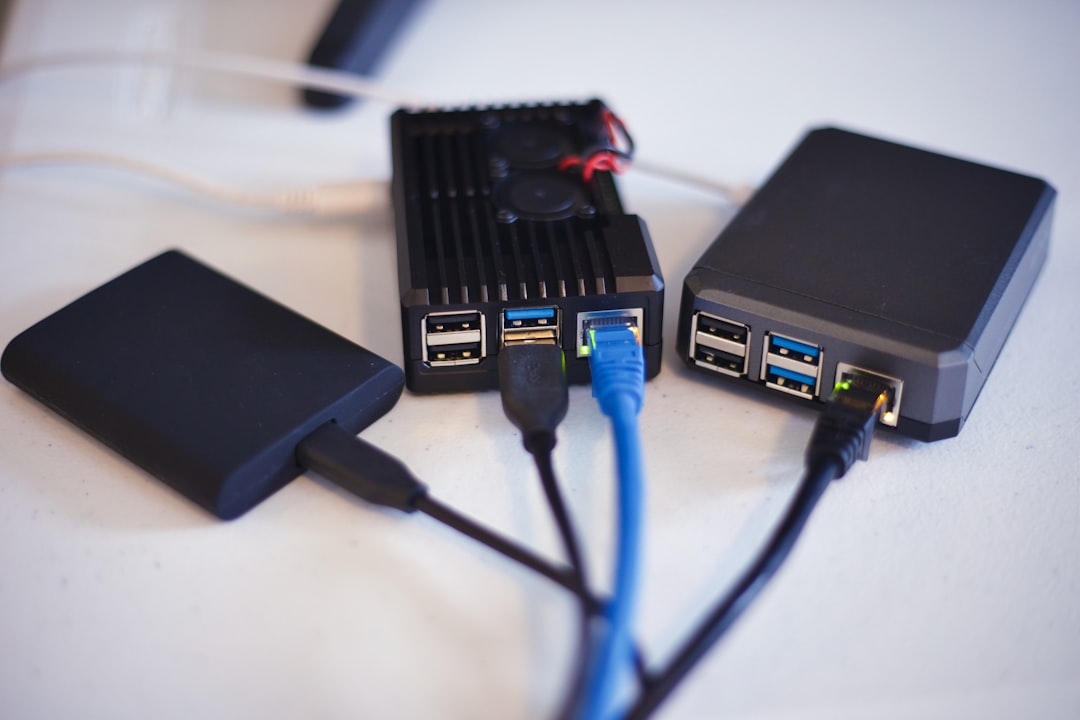
Check NAT Type
- Open NAT: Best connection
- Moderate NAT: Usually fine but may restrict matchmaking
- Strict NAT: Often causes connection issues
If your NAT is strict:
- Enable UPnP in router settings.
- Forward required Call of Duty ports.
- Consider switching to a wired Ethernet connection.
Firewall Whitelisting (PC)
- Open Windows Defender Firewall.
- Select “Allow an app through firewall.”
- Add Black Ops 7 and its launcher.
Third-party antivirus software may also require manual exceptions.
Step 7: Re-Link Your Activision Account
Authentication errors between your platform account and Activision account can trigger offline messages.
Try:
- Logging into your Activision account online.
- Verifying your email address.
- Unlinking and relinking your platform account.
This refreshes account permissions and clears expired session tokens.
Step 8: Disable VPNs and Proxy Services
Using a VPN can sometimes improve ping—but it can also block server recognition. If you’re running a VPN:
- Disable it temporarily.
- Restart your game.
- Test the connection again.
Some users experience instant fixes after removing VPN routing conflicts.
Step 9: Reinstall the Game (Last Resort)
If nothing else works, a clean installation may solve deeply rooted issues.
Before reinstalling:
- Ensure your saved data is cloud-synced.
- Check available storage space.
- Fully uninstall—not just delete shortcuts.

A fresh installation ensures no corrupted or outdated components remain.
Common Scenarios and Quick Fixes
- After an update: Restart router and verify files.
- Only happening at night: Likely ISP congestion.
- Works on WiFi but not Ethernet: Check cable or LAN settings.
- Only multiplayer fails: NAT or firewall issue.
- Campaign works but online doesn’t: Server-side or account authentication problem.
When to Contact Support
You should reach out to Activision Support if:
- The issue persists after full troubleshooting.
- Your account may be suspended or banned.
- You receive error codes beyond “Connection Offline.”
Prepare to provide:
- Your Activision ID
- Your platform and username
- Screenshot of the error
- Steps you’ve already tried
Preventing Future Connection Issues
While some outages are unavoidable, you can reduce the risk of repeat problems:
- Use a wired Ethernet connection.
- Keep your router firmware updated.
- Enable automatic game updates.
- Restart your network equipment weekly.
- Avoid heavy downloads during gameplay.
A stable network environment significantly reduces future “Connection Offline” messages.
Final Thoughts
Seeing “Connection Offline” in Call of Duty: Black Ops 7 can feel like a major roadblock—but in most cases, the solution is straightforward. Whether it’s a temporary server hiccup, a router needing a reboot, or a minor account sync issue, methodically working through the steps above will restore your connection.
Start simple: Check servers and restart everything. Then move into updates, file verification, and NAT adjustments. Reinstallation and support tickets should be your final steps—not your first.
With a bit of troubleshooting, you’ll be back in the action, climbing the leaderboard, and avoiding that frustrating offline screen for good.

