
The Sunbeam F1 is designed to be a privacy-focused, no-frills phone that emphasizes reliability over complexity. However, like any mobile device, it can occasionally run into technical issues—one of the most frustrating being when it fails to recognize a SIM card. If your Sunbeam F1 displays errors such as “No SIM,” “Emergency Calls Only,” or simply fails to connect to your carrier, the problem can feel alarming. Fortunately, in most cases, this issue can be resolved with careful troubleshooting.
TLDR: If your Sunbeam F1 is not recognizing your SIM card, start by powering off the phone and reseating the SIM card carefully. Check for SIM damage, carrier compatibility, and network settings before assuming hardware failure. Software updates and resetting network settings often resolve detection issues. If none of these steps work, you may need a replacement SIM or professional support.
Contents
- 1 Why Your Sunbeam F1 May Not Recognize the SIM
- 2 1. Power Off and Reseat the SIM Card
- 3 2. Check for Physical SIM Card Damage
- 4 3. Verify Carrier Compatibility
- 5 4. Toggle Airplane Mode
- 6 5. Restart the Device (Forced Reboot)
- 7 6. Update the Phone’s Software
- 8 7. Reset Network Settings
- 9 8. Test the SIM Card in Another Device
- 10 9. Check for Lock or IMEI Block Issues
- 11 10. Inspect for Hardware Damage
- 12 Common Error Messages and What They Mean
- 13 When to Contact Support
- 14 Preventing Future SIM Issues
- 15 Final Thoughts
Why Your Sunbeam F1 May Not Recognize the SIM
When your phone fails to detect a SIM card, the root cause generally falls into one of three categories:
- Physical SIM or tray issue
- Carrier or activation problem
- Software or firmware error
Understanding which category applies can save you significant time and frustration. Below, we will walk through each potential cause and provide step-by-step solutions.
1. Power Off and Reseat the SIM Card
This may seem simple, but it is the most effective first step. A slightly misaligned SIM card can prevent proper contact with the phone’s connectors.
Follow these steps:
- Power off your Sunbeam F1 completely.
- Remove the SIM card tray using the proper ejector tool.
- Take out the SIM card carefully.
- Inspect it for dust, debris, or visible damage.
- Reinsert the SIM card firmly and correctly aligned.
- Power the device back on.
Important: Do not insert or remove the SIM card while the device is powered on. Doing so may cause reading errors or corrupt network data.
2. Check for Physical SIM Card Damage
SIM cards are small but sensitive components. Minor scratches, worn contacts, or bent edges can prevent proper operation.
Examine the following:
- Are the gold contacts scratched or discolored?
- Is the card cracked or warped?
- Has the SIM been trimmed manually?
If you notice damage, contact your carrier and request a replacement SIM card. Most carriers provide replacements at low or no cost.
3. Verify Carrier Compatibility
The Sunbeam F1 is built for use on specific U.S. networks, primarily those that support its LTE bands and VoLTE configurations. If you recently switched carriers or inserted a new SIM, compatibility may be the issue.
Confirm the following:
- Your carrier supports the Sunbeam F1 model.
- The SIM card is activated.
- Your account is active and in good standing.
If unsure, contact your carrier’s customer service and verify that your device’s IMEI is registered and approved for use.
4. Toggle Airplane Mode
Sometimes the issue is not with SIM detection itself but with network registration. Toggling Airplane Mode forces the phone to reconnect to the network.
Steps:
- Turn Airplane Mode on.
- Wait 30 seconds.
- Turn Airplane Mode off.
This simple reset often restores connectivity if the phone was struggling to connect to a weak or unstable network signal.
5. Restart the Device (Forced Reboot)
If a simple power cycle did not work, perform a forced reboot. This clears temporary system glitches that may interfere with SIM recognition.
To force restart:
- Hold down the Power button until the device shuts down completely.
- Wait 20–30 seconds.
- Turn it back on.
Temporary firmware errors can occasionally prevent the SIM interface from initializing during boot.
6. Update the Phone’s Software
Outdated firmware can lead to network recognition issues. Sunbeam periodically releases updates that address stability and compatibility problems.
Image not found in postmetaTo check for updates:
- Open the Settings menu.
- Navigate to System or Device Information.
- Select Software Update.
- Install any available updates.
Always ensure your device has sufficient battery life before starting an update.
7. Reset Network Settings
If your phone recognizes the SIM but cannot connect to the carrier, resetting network settings may resolve the issue.
What a network reset does:
- Clears saved carrier configurations
- Resets APN settings
- Removes stored network registration data
This does not erase your personal data such as contacts or messages.
Navigate to:
Settings → Network Settings → Reset Network
8. Test the SIM Card in Another Device
To determine whether the issue lies with the phone or the SIM, test the SIM card in another compatible phone.
- If it works elsewhere, your Sunbeam F1 may have a hardware issue.
- If it does not work, the SIM card itself is likely faulty or inactive.
This step is crucial before pursuing repairs or replacements.
9. Check for Lock or IMEI Block Issues
If your Sunbeam F1 was purchased secondhand, it may be locked to a specific carrier. Alternatively, the IMEI could be blacklisted due to unpaid balances or prior loss reports.
Signs of a lock issue:
- SIM works from one carrier but not another
- Device prompts for unlock code
Contact the original carrier to verify unlock status or IMEI eligibility.
10. Inspect for Hardware Damage
If none of the above solutions work, physical damage inside the phone may be responsible.
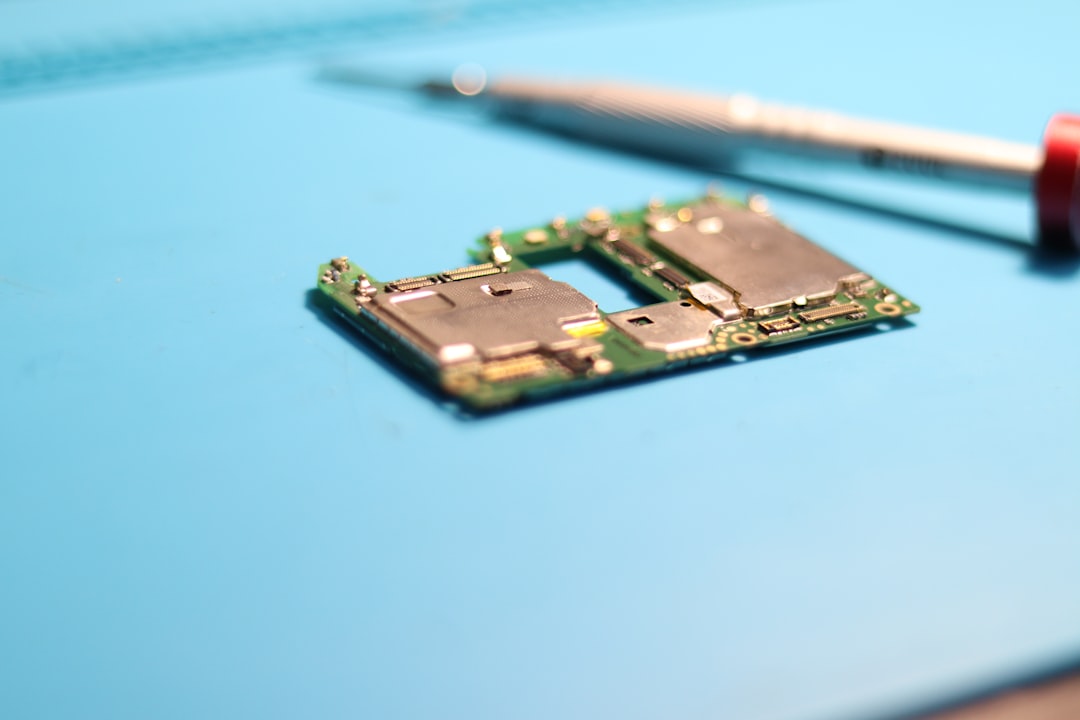
Potential hardware problems include:
- Damaged SIM reader pins
- Corrosion from moisture exposure
- Impact damage to internal components
If your device has recently been dropped or exposed to water, professional inspection is recommended.
Common Error Messages and What They Mean
| Error Message | Likely Cause | Recommended Fix |
|---|---|---|
| No SIM Inserted | SIM misaligned or defective | Reseat or replace SIM |
| Emergency Calls Only | Network registration failure | Toggle Airplane Mode or reset network |
| SIM Not Provisioned | Inactive or new SIM | Contact carrier for activation |
| Invalid SIM | Carrier lock or incompatibility | Verify unlock status |
When to Contact Support
You should contact Sunbeam support or your carrier if:
- You have confirmed the SIM works in other phones.
- Your device is up to date.
- Network reset did not solve the issue.
- The phone shows no physical damage but still fails to detect SIMs.
Be prepared to provide:
- Your device’s IMEI number
- Your carrier name
- Details of troubleshooting steps already completed
Preventing Future SIM Issues
While not all problems can be prevented, you can reduce the likelihood of SIM detection errors:
- Avoid removing the SIM unnecessarily.
- Store SIM cards in protective sleeves if unused.
- Keep the phone dry and protected from impact.
- Install updates promptly when notified.
Maintaining your device carefully ensures long-term reliability.
Final Thoughts
A Sunbeam F1 not recognizing a SIM card can feel disruptive, especially if you rely on it for essential communication. However, most cases stem from minor alignment, activation, or temporary software issues that can be fixed in minutes. Methodical troubleshooting—starting with the simplest explanations—often resolves the problem without professional repair.
If you have carefully worked through each step and the issue persists, do not hesitate to contact your carrier or Sunbeam directly. Reliable communication is too important to ignore, and in most cases, the solution is straightforward once the root cause is identified.
By approaching the issue calmly and systematically, you can restore your device’s connectivity and ensure your Sunbeam F1 continues performing as intended.

