
Streaming interruptions are frustrating, especially when you are ready to relax and suddenly encounter an unfamiliar error code. One such issue that has received increased attention from users is Netflix UI3012. This error can prevent access to content entirely, often appearing without clear explanation. Understanding what causes this issue and how to resolve it is essential for restoring uninterrupted streaming and ensuring your device remains properly configured for Netflix access.
TLDR: The Netflix UI3012 error is typically caused by network configuration problems, DNS settings, VPN or proxy interference, or outdated device software. Resolving it usually involves checking your internet connection, disabling VPNs, restarting your device and router, or updating software. In more complex cases, adjusting DNS settings or configuring firewall rules may be required. Most users can fix the issue within minutes using basic troubleshooting steps.
Contents
What Is Netflix Error UI3012?
Netflix UI3012 is a connection-related error that appears when your device cannot properly communicate with Netflix’s servers. Unlike account or billing errors, this code specifically indicates that something in your network environment is blocking or interfering with the connection.
The message often reads along the lines of:
- “Whoops, something went wrong…”
- “Netflix has encountered an error. Code: UI3012”
This issue commonly occurs on:
- Smart TVs
- Streaming devices (Roku, Fire TV, Apple TV)
- Windows or macOS computers
- Gaming consoles
Although it may seem serious, UI3012 generally indicates a configuration issue rather than a service outage. In most cases, the solution lies in network troubleshooting.
Primary Causes of Netflix UI3012
To fix the problem effectively, it is important to identify its root cause. Below are the most common triggers behind this error.
1. DNS Configuration Problems
The Domain Name System (DNS) translates website names into IP addresses. If your DNS settings are incorrectly configured or not communicating properly, Netflix cannot connect to its servers.
Many users encounter UI3012 after manually changing DNS settings to:
- Public DNS providers
- Custom ISP configurations
- Smart DNS services
If these settings fail or become inaccessible, Netflix connections may break.
2. VPN or Proxy Interference
Netflix actively detects and blocks many VPN and proxy connections. If your device is connected to such a service, the platform may deny access, sometimes triggering UI3012 instead of a specific proxy error.
Common scenarios include:
- VPN software running in the background
- Router-level VPN configurations
- Corporate network proxies
3. Router or Firewall Restrictions
Advanced firewall settings can block critical communication ports used by Netflix. Overly restrictive security systems may prevent proper server authentication.
4. Corrupted Cache or Application Data
Streaming apps store temporary data to improve performance. When this cache becomes corrupted, it may prevent apps from launching properly.
5. Outdated Device Firmware
Smart TVs and streaming devices require regular software updates. Outdated firmware may lack compatibility with Netflix’s current infrastructure.
Step-by-Step Solutions to Fix Netflix UI3012
The following solutions are arranged from simplest to more advanced. It is recommended to attempt them in order.
1. Restart Your Device
A simple restart resolves many streaming issues. Power off the device completely (not just sleep mode), wait at least 60 seconds, then restart.
This clears temporary memory conflicts and reconnects background services.
2. Restart Your Router and Modem
Network refresh steps:
- Unplug router and modem
- Wait 60–90 seconds
- Plug modem back in first
- Wait for full connectivity
- Reconnect router
This resets local IP assignments and clears temporary network errors.
3. Disable VPN or Proxy Services
If you are using a VPN:
- Disconnect temporarily
- Close background applications
- Restart Netflix
For router-level VPNs, access your router’s configuration panel and disable the VPN connection.
4. Switch DNS to Automatic
On many devices, DNS settings may be manually configured. Changing them back to automatic often resolves UI3012.
General instructions:
- Open network settings
- Select your active connection
- Locate DNS settings
- Choose Automatic instead of Manual
If automatic fails, use a reliable public DNS like:
- 8.8.8.8 and 8.8.4.4 (Google)
- 1.1.1.1 and 1.0.0.1 (Cloudflare)
5. Clear Netflix App Cache
On streaming devices:
- Navigate to application settings
- Select Netflix
- Choose clear cache or clear data
Note: Clearing data may require you to log in again.
6. Update Device Firmware
Check for system updates in your device settings. Install any available updates and restart the device.
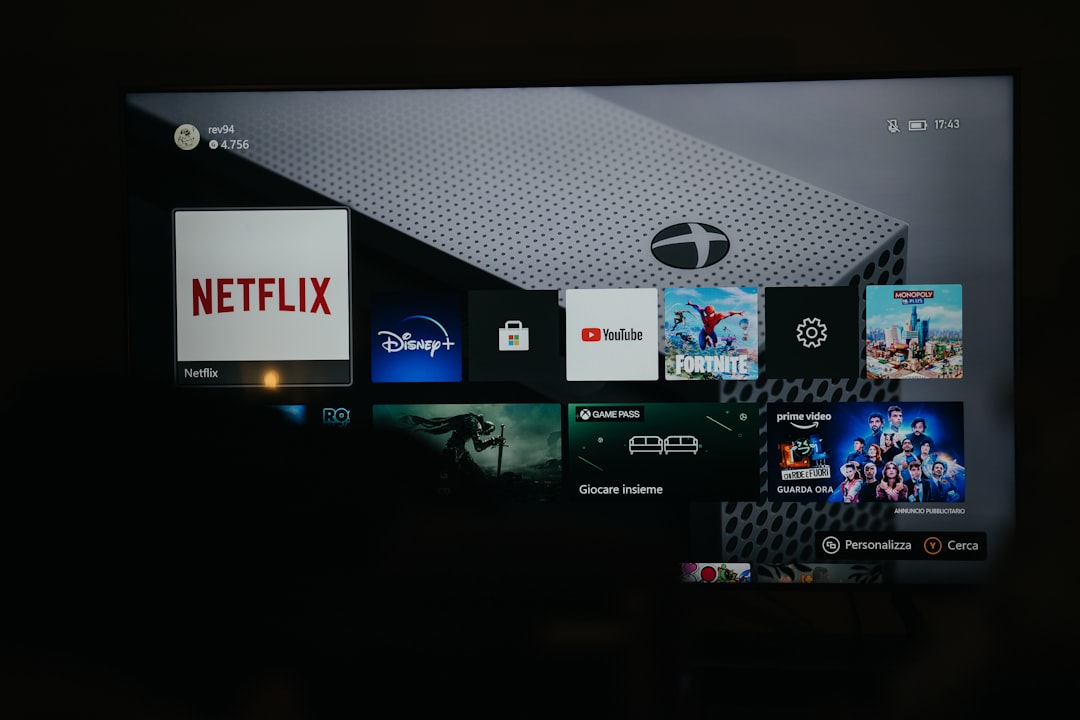
Regular updates ensure compatibility with streaming platforms and improve security protocols.
7. Check Firewall Settings
If you use advanced network security software or hardware firewalls, ensure that streaming traffic is not blocked. You may need to:
- Allow Netflix domains
- Enable secure HTTPS traffic
- Temporarily disable strict filtering
Comparison of Common Causes and Fixes
| Cause | Symptoms | Difficulty Level | Recommended Fix |
|---|---|---|---|
| DNS Misconfiguration | Immediate connection failure | Moderate | Switch DNS to automatic or public DNS |
| VPN Detected | Error appears after enabling VPN | Easy | Disable VPN temporarily |
| Router Glitch | Multiple devices affected | Easy | Restart modem and router |
| Corrupted Cache | App fails to open properly | Easy | Clear app cache or reinstall |
| Outdated Firmware | Repeated errors across apps | Moderate | Update device software |
When to Contact Netflix Support
If none of the above solutions resolve the issue, it may be time to contact Netflix directly. Before doing so, gather the following information:
- Device model and firmware version
- Internet provider name
- Confirmation of VPN status
- Exact error code displayed
This allows support representatives to provide targeted troubleshooting rather than repeating basic steps.
Preventing Future UI3012 Errors
While not every network issue can be prevented, certain best practices significantly reduce the likelihood of recurrence.
- Keep devices updated regularly
- Avoid frequent manual DNS changes
- Use reputable VPN services if needed
- Restart your router periodically
- Maintain stable internet speeds
Additionally, ensure your internet plan supports streaming demands. Netflix recommends at least:
- 3 Mbps for SD streaming
- 5 Mbps for HD
- 15 Mbps or more for Ultra HD
Is UI3012 a Serious Security Issue?
In most cases, UI3012 is not a cybersecurity threat. It usually reflects a communication breakdown between your device and Netflix’s servers. However, persistent connection errors could indicate:
- Improper router configuration
- Outdated security certificates
- Firewall mismanagement
Ensuring your network uses modern encryption standards such as WPA3 or WPA2 can enhance overall stability and security.
Final Thoughts
The Netflix UI3012 error, though disruptive, is generally easy to resolve. Most occurrences stem from network configuration issues, particularly DNS or VPN interference. By systematically restarting devices, verifying connection settings, and updating software, users can typically restore service within minutes.
Maintaining a properly configured network environment not only prevents UI3012 but also improves streaming performance overall. A structured approach to troubleshooting—beginning with basic resets and progressing to advanced configuration checks—ensures that the problem is addressed efficiently and correctly.
Reliable streaming depends on stable connectivity. With the guidance outlined above, users can confidently diagnose and resolve Netflix UI3012 while minimizing downtime and frustration.

