
Installing Soldier of Fortune II (SOF2) should be exciting. You’re ready for classic action. You’re ready for nostalgia. Then—boom. An annoying message pops up: “I/O Error at the end”. Installation stops. Fun ruined.
Don’t worry. This error sounds scary, but it’s usually simple to fix. In this guide, we’ll break it down into easy steps. No tech wizard skills needed. Just follow along.
TL;DR: The SOF2 “I/O Error at the end” usually happens because of damaged installation files, disk read problems, permission issues, or storage errors. Start by checking your install media or ISO file. Then verify disk space and run the installer as administrator. If needed, copy the files to your hard drive or use compatibility mode. One of these fixes almost always works.
Contents
- 1 What Does “I/O Error” Even Mean?
- 2 Fix #1: Check Your Installation Media
- 3 Fix #2: Copy Installation Files to Your Hard Drive
- 4 Fix #3: Run as Administrator
- 5 Fix #4: Check Free Disk Space
- 6 Fix #5: Scan Your Hard Drive for Errors
- 7 Fix #6: Use a Different Mounting Tool
- 8 Fix #7: Install Outside Program Files
- 9 Fix #8: Disable Antivirus Temporarily
- 10 Fix #9: Use a Pre-Patched or Digital Version
- 11 Still Getting the Error?
- 12 Why This Error Often Appears “At The End”
- 13 Best Recommended Order to Try Fixes
- 14 Final Thoughts
What Does “I/O Error” Even Mean?
Let’s keep it simple.
I/O means Input/Output. It’s how your computer reads and writes data. During installation, the game reads files from a disc or ISO. Then it writes them to your hard drive.
If something interrupts that process, you get an I/O error.
Common reasons:
- Scratched or damaged CD/DVD
- Corrupted ISO file
- Faulty disk drive
- Not enough storage space
- Bad sectors on your hard drive
- Permission or compatibility issues
Now let’s fix it.
Fix #1: Check Your Installation Media
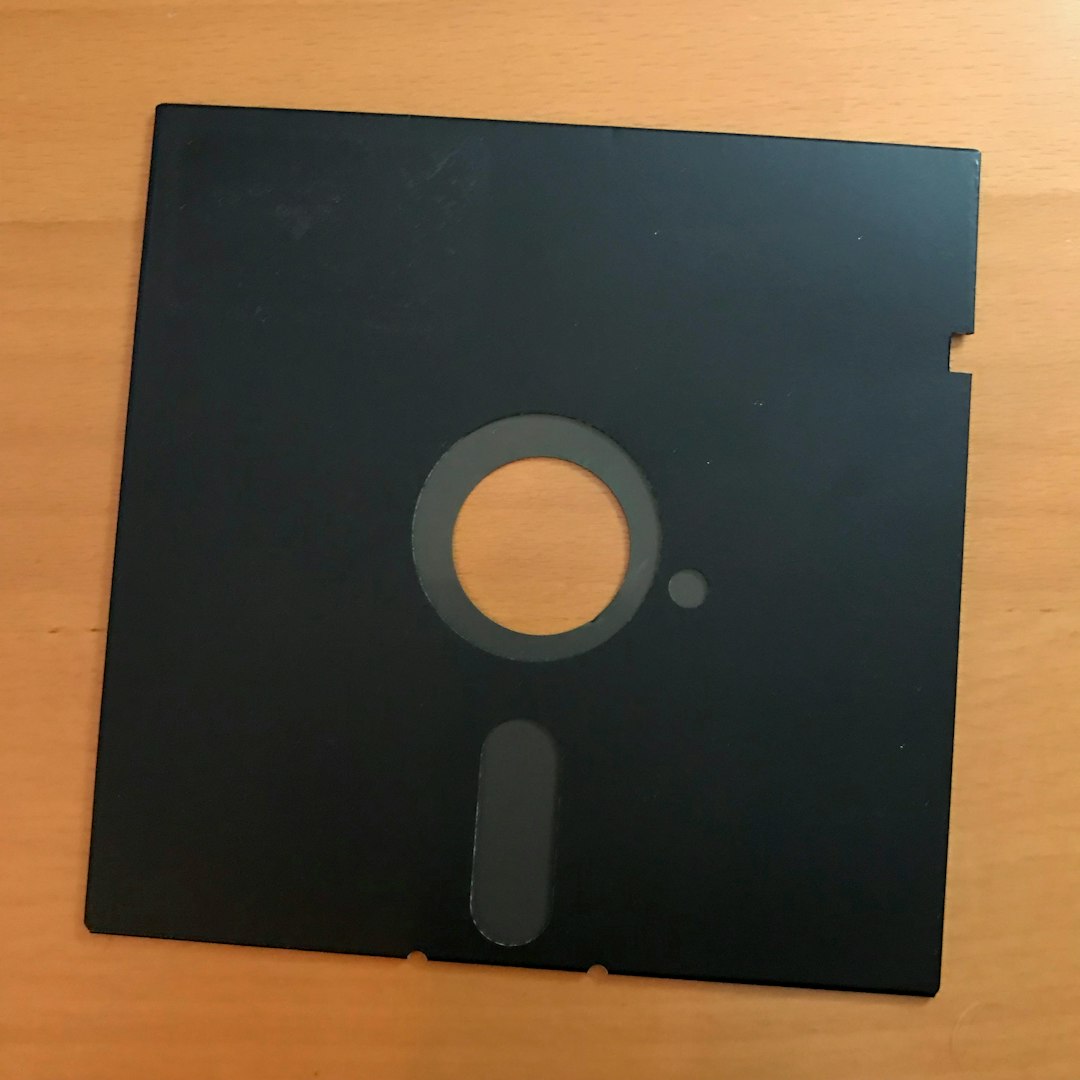
If you are installing from an old disc, this is the first place to look.
SOF2 is old. CDs get scratched. Data fades over time.
What to do:
- Clean the disc gently with a microfiber cloth
- Wipe from the center outward (not in circles)
- Check for visible scratches
- Try another DVD drive if possible
If the disc is badly scratched, that may be your problem.
If you’re using an ISO file:
- Re-download the ISO from a trusted source
- Verify the file size matches the original
- Mount it again using a different tool
Corrupted ISO files are very common. Especially if downloaded years ago.
Fix #2: Copy Installation Files to Your Hard Drive
This method works surprisingly well.
Instead of installing directly from the disc or mounted ISO, copy everything to your hard drive first.
Steps:
- Create a new folder on your Desktop.
- Copy all files from the CD or ISO into it.
- Run setup.exe from that folder.
Why does this work?
Because sometimes the installation fails at the very end when the system tries to access the disc again. Copying removes that problem.
Quick. Simple. Effective.
Fix #3: Run as Administrator
SOF2 was made for Windows XP. Not Windows 10 or 11.
Modern Windows protects system folders. Sometimes too aggressively.
If the installer doesn’t have permission to write files, it may fail at the end.
Here’s what to do:
- Right-click setup.exe
- Select Run as Administrator
- Try installing again
Still failing?
Try compatibility mode:
- Right-click setup.exe
- Click Properties
- Open the Compatibility tab
- Select Windows XP (Service Pack 3)
- Click Apply
Old game. Old settings. Sometimes that’s all it needs.
Fix #4: Check Free Disk Space
This sounds obvious. But it’s often overlooked.
If your hard drive is nearly full, the installer may crash at the final stage.
Even if it looks like you have space left, Windows needs extra temporary space during installation.
Do this:
- Open “This PC”
- Check your drive’s free space
- Make sure you have at least 5–10 GB free
SOF2 is small. But Windows isn’t.
Fix #5: Scan Your Hard Drive for Errors
Sometimes the problem isn’t the game.
It’s your drive.
Bad sectors can cause I/O errors. Especially during large file transfers.
Let’s scan the drive.
Steps:
- Open Command Prompt as Administrator
- Type: chkdsk C: /f /r
- Press Enter
- Restart your PC if prompted
This checks for disk errors and attempts repairs.
If errors are found, that likely caused your installation failure.
And if your drive keeps developing bad sectors? It might be time for a replacement.
Fix #6: Use a Different Mounting Tool
If you’re using an ISO file, the mounting software matters.
Some tools handle old game formats better than others.
Here are popular options:
| Tool | Ease of Use | Compatibility with Old Games | Free Version |
|---|---|---|---|
| Windows Built-in Mounter | Very Easy | Medium | Yes |
| Daemon Tools Lite | Easy | High | Yes (Limited) |
| WinCDEmu | Very Easy | High | Yes |
| PowerISO | Moderate | High | Trial |
If one tool fails, try another. Many users report success simply by switching mounting software.
Fix #7: Install Outside Program Files
Windows protects the Program Files folder heavily.
Old games don’t like that.
Try installing SOF2 somewhere simpler.
For example:
- C:\Games\SOF2
- C:\OldGames\SOF2
This avoids Windows permission headaches.
Fix #8: Disable Antivirus Temporarily
Some antivirus programs block old installers.
They see unfamiliar behavior and panic.
Try this carefully:
- Temporarily disable antivirus
- Install the game
- Turn antivirus back on
Important: Only do this if your installation file is from a trusted source.
Fix #9: Use a Pre-Patched or Digital Version
Let’s be honest.
Sometimes the easiest fix is avoiding the old installer completely.
Look for:
- Official digital re-releases
- Pre-patched community installers
- Legitimate archive versions
Many of these remove compatibility issues entirely.
Less frustration. More gaming.
Still Getting the Error?
If none of the above works, here’s a quick checklist:
- Try installing on a different PC
- Try a different hard drive
- Test your RAM (rare, but possible)
- Create a new Windows user account and try there
One of these usually reveals the culprit.
Why This Error Often Appears “At The End”
Good question.
The installer copies most files successfully. Then during final verification, it tries to read one last file.
That’s when it fails.
So the error shows up when you think you’re done.
Frustrating? Yes.
Unfixable? Not at all.
Best Recommended Order to Try Fixes
If you want the fastest path, follow this order:
- Run installer as Administrator
- Use Compatibility Mode (XP SP3)
- Copy install files to hard drive
- Check disk space
- Try different ISO mounting tool
- Scan hard drive with chkdsk
This solves 90% of cases.
Final Thoughts
SOF2 is a classic. It deserves to run.
The “I/O Error at the end” sounds dramatic. But it’s usually a small issue with reading or writing files.
Take it step by step. Don’t rush. Try the simple fixes first.
Most players solve it within 15–30 minutes.
And when the game finally launches?
Totally worth it.
Now go install it. And enjoy the nostalgia.

