

If someone is repeatedly texting, calling, or trying to reach you on FaceTime, your iPhone gives you reliable tools to stop that contact from getting through. Blocking is built directly into iOS, and once you block a phone number, email address, or saved contact, it generally applies across Phone, Messages, FaceTime, and Mail when that same contact information is used. This guide explains how to block someone on iPhone, what happens after you block them, and how to review or undo a block if needed.
TLDR: To block someone on iPhone, open the relevant app, such as Messages, Phone, or FaceTime, tap the person’s name or number, open their information screen, and choose Block this Caller. Once blocked, their calls go to voicemail, their texts do not appear in your conversation list, and FaceTime calls will not ring through. You can manage blocked contacts later by going to Settings and reviewing the blocked list under Phone, Messages, or FaceTime.
Contents
- 1 What Blocking Someone on iPhone Actually Does
- 2 How to Block Someone from Texting You
- 3 How to Block Someone from Calling You
- 4 How to Block Someone on FaceTime
- 5 How to Block a Saved Contact
- 6 How to View and Manage Blocked Contacts
- 7 How to Block Unknown or Spam Callers
- 8 Can a Blocked Person Tell They Were Blocked?
- 9 What Blocking Does Not Do
- 10 How to Unblock Someone on iPhone
- 11 Best Practices for Handling Unwanted Contact
- 12 Final Thoughts
What Blocking Someone on iPhone Actually Does
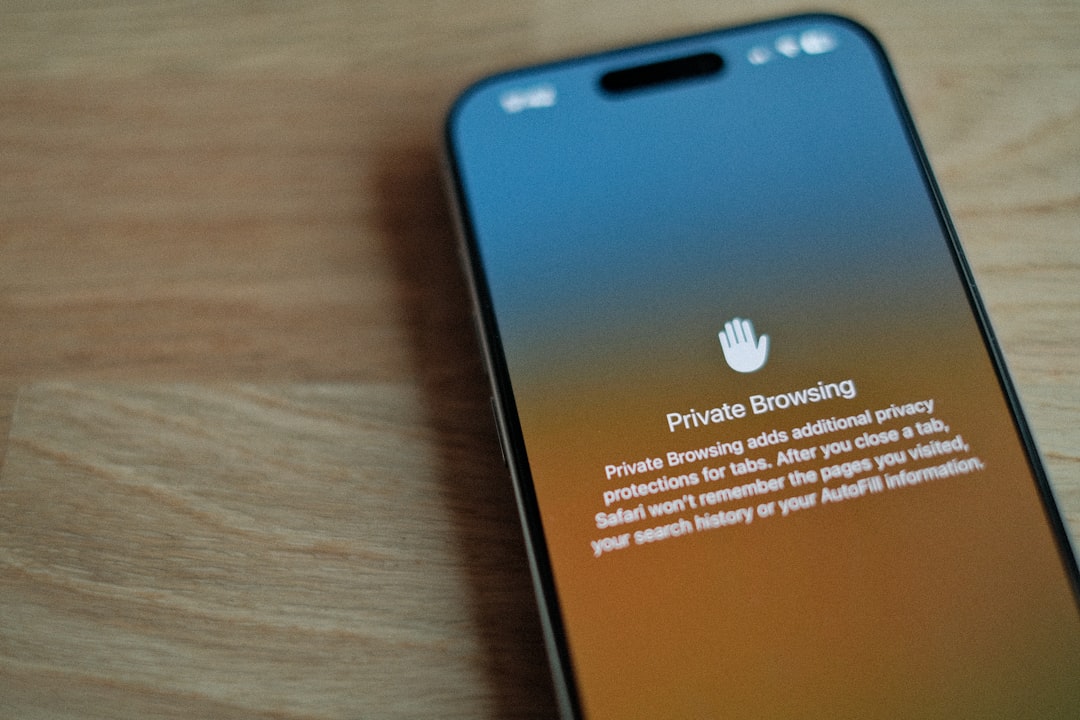
Blocking someone on an iPhone is designed to reduce unwanted contact without notifying the other person. When you block a number or contact, your iPhone prevents that person from reaching you through standard Apple communication services tied to that number or email address.
In practical terms, blocking affects several areas:
- Phone calls: Calls from the blocked number are silenced and usually sent directly to voicemail.
- Text messages and iMessages: Messages from the blocked sender will not appear in your Messages inbox.
- FaceTime: FaceTime audio and video calls from the blocked contact will not ring on your device.
- Mail: If enabled, emails from blocked senders can be marked or moved depending on your Mail settings.
Apple does not send a notification to the blocked person. However, they may eventually suspect they have been blocked if calls consistently go to voicemail or messages receive no response. Blocking is not always a replacement for legal, workplace, or safety measures, but it is a practical first step for controlling unwanted communication.
How to Block Someone from Texting You
If the person has contacted you by SMS or iMessage, you can block them directly from the Messages app. This is often the easiest method because it uses the existing conversation thread.
- Open the Messages app on your iPhone.
- Tap the conversation with the person you want to block.
- Tap the person’s name, phone number, or profile icon at the top of the screen.
- Tap Info if prompted.
- Scroll down and tap Block this Caller.
- Confirm by tapping Block Contact.
After this, the person’s texts and iMessages will no longer show up in your Messages app. The old conversation may remain visible unless you delete it manually, but new messages from that sender will be blocked.
Important: If the person uses multiple numbers or email addresses for iMessage, you may need to block each one separately. Blocking one phone number does not automatically block every possible account they might use.
How to Block Someone from Calling You
You can block callers from the Phone app, including recent callers, missed calls, and saved contacts. This is especially useful for spam calls, harassment, or repeated unwanted contact.
- Open the Phone app.
- Tap Recents at the bottom of the screen.
- Find the number or contact you want to block.
- Tap the small information icon next to the number.
- Scroll down and tap Block this Caller.
- Tap Block Contact to confirm.
Once blocked, calls from that number should not ring on your iPhone. In many cases, the caller may still be able to leave a voicemail, but it usually appears in a separate Blocked Messages section at the bottom of your voicemail list, depending on your carrier and iOS version.
If you are dealing with telemarketers or spam, you may also want to enable additional call filtering. Go to Settings > Phone and look for options such as Silence Unknown Callers or carrier-supported call blocking features. These settings are not the same as blocking a specific person, but they can reduce unwanted interruptions.
How to Block Someone on FaceTime
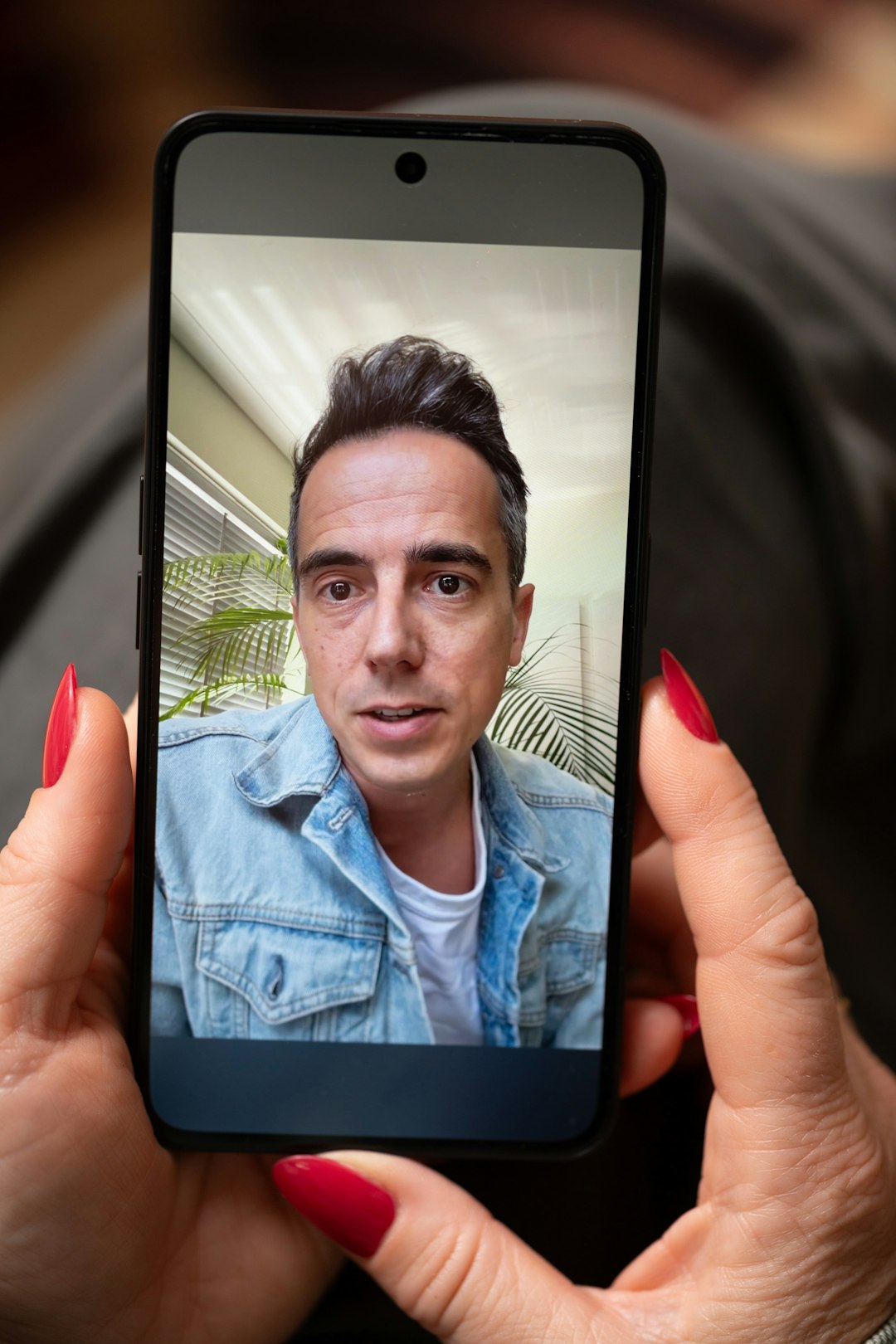
FaceTime blocking is useful when someone is repeatedly attempting video or audio calls. You can block them directly from the FaceTime app.
- Open the FaceTime app.
- Find the recent FaceTime call from the person you want to block.
- Tap the information icon next to their name, number, or email address.
- Scroll down and tap Block this Caller.
- Confirm by tapping Block Contact.
After the block is active, FaceTime calls from that number or email address will not alert you. As with Messages, if the person has multiple Apple ID email addresses or numbers, you may need to block each one individually.
How to Block a Saved Contact
If the person is already saved in your contacts, you can block them from the Contacts app or from Settings. Blocking a saved contact can be more comprehensive because the contact card may include multiple phone numbers and email addresses.
- Open the Contacts app, or open the Phone app and tap Contacts.
- Select the person you want to block.
- Scroll to the bottom of the contact card.
- Tap Block this Caller.
- Tap Block Contact to confirm.
This blocks the contact information saved under that contact card. Before relying on it, review the card to make sure it contains the phone numbers and email addresses the person actually uses. If their information is incomplete, add the missing number or address before blocking, or block those details separately from Messages, Phone, or FaceTime.
How to View and Manage Blocked Contacts
Your iPhone keeps a central list of blocked contacts that you can review at any time. This is useful if you want to confirm whether someone is blocked, remove an old block, or add another contact manually.
To view blocked phone contacts:
- Open Settings.
- Scroll down and tap Phone.
- Tap Blocked Contacts.
To view blocked message senders:
- Open Settings.
- Tap Messages.
- Tap Blocked Contacts.
To view blocked FaceTime contacts:
- Open Settings.
- Tap FaceTime.
- Tap Blocked Contacts.
These lists generally reflect the same blocked contacts across Apple communication apps. To unblock someone, tap Edit, select the red minus icon next to their name or number, and tap Unblock. You can also swipe left on a contact in the blocked list and choose Unblock.
How to Block Unknown or Spam Callers
Blocking individual numbers is helpful, but many spam callers use constantly changing numbers. For that situation, Apple provides tools to reduce calls from people who are not in your contacts.
To silence unknown callers:
- Open Settings.
- Tap Phone.
- Tap Silence Unknown Callers.
- Turn the feature on.
When enabled, calls from unknown numbers are silenced, sent to voicemail, and shown in your Recents list. Calls from people in your Contacts, recent outgoing calls, and Siri Suggestions can still ring through. This feature can be very effective, but use it carefully if you expect calls from doctors, schools, delivery drivers, employers, or other people who may not be saved in your contacts.
You can also check whether your mobile carrier offers spam identification or call filtering. Some carriers provide built-in tools that label suspected spam, block robocalls, or filter high-risk numbers before they reach your phone.
Can a Blocked Person Tell They Were Blocked?
Apple does not directly inform someone that you blocked them. They will not receive an alert, message, or status saying they are blocked. From their perspective, the signs may be subtle. Calls may go to voicemail quickly, iMessages may not show a clear delivery pattern, and FaceTime calls may appear to ring without reaching you.
However, blocking is not completely invisible in every situation. A determined person may test from another number or notice that you no longer respond. For this reason, if you are blocking someone due to harassment, threats, stalking, or domestic abuse, consider taking additional steps. Save evidence, avoid engaging, and contact local authorities or a trusted support organization if you feel unsafe.
What Blocking Does Not Do
Blocking on iPhone is powerful, but it has limits. Understanding those limits helps you choose the right response.
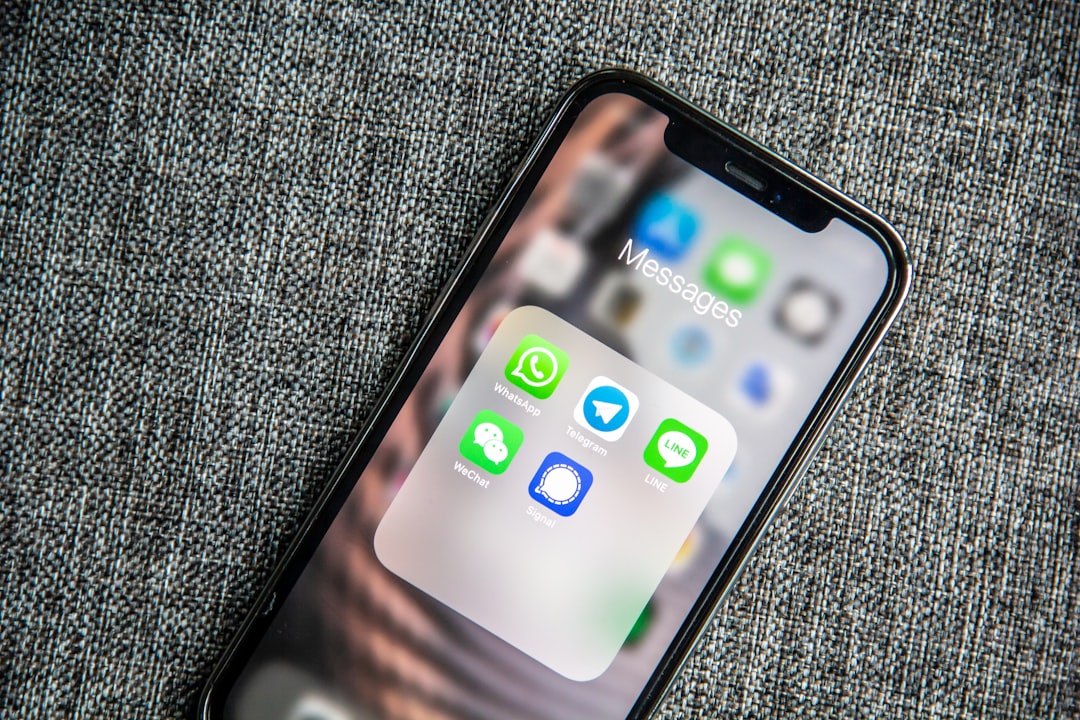
- It does not block every app: Blocking someone in Phone, Messages, or FaceTime does not automatically block them on WhatsApp, Instagram, Facebook Messenger, Snapchat, Telegram, or other third-party apps.
- It does not prevent contact from new numbers: If the person uses another phone number or Apple ID, they may still be able to reach you unless you block the new contact information.
- It does not delete old messages: Existing conversations may remain on your device until you delete them.
- It does not stop in-person contact: If the issue involves personal safety, blocking should be only one part of a broader safety plan.
How to Unblock Someone on iPhone
If you blocked someone by mistake or decide to allow contact again, unblocking is straightforward.
- Open Settings.
- Tap Phone, Messages, or FaceTime.
- Tap Blocked Contacts.
- Find the person or number you want to unblock.
- Swipe left and tap Unblock, or tap Edit and remove them from the list.
After unblocking, future calls, texts, and FaceTime requests can come through again. Messages sent while the person was blocked usually do not appear later, so unblocking does not restore missed texts from the blocked period.
Best Practices for Handling Unwanted Contact
For ordinary unwanted calls or messages, blocking is often enough. For more serious situations, take a careful and documented approach. Keep screenshots of threatening messages, save call logs, and avoid deleting evidence if you may need to report the behavior. If the person continues contacting you from new numbers, block each new number and consider using Silence Unknown Callers.
You should also review your privacy settings. Check who can see your location through Find My, who can contact you through social apps, and whether your Apple ID email address is visible to people you do not trust. If necessary, update passwords, enable two-factor authentication, and remove unknown devices from your Apple ID account.
Final Thoughts
Blocking someone on iPhone is a direct and dependable way to stop unwanted texts, calls, and FaceTime interruptions. The process is simple: open the app where the contact appeared, view their information, and choose Block this Caller. For most users, this immediately restores a sense of control and privacy.
Still, blocking should be understood as one privacy tool, not a complete personal safety solution. If the contact is persistent, threatening, or abusive, document what is happening and seek appropriate help. Used thoughtfully, the iPhone’s blocking features can protect your attention, reduce stress, and help you maintain clear boundaries.

)