
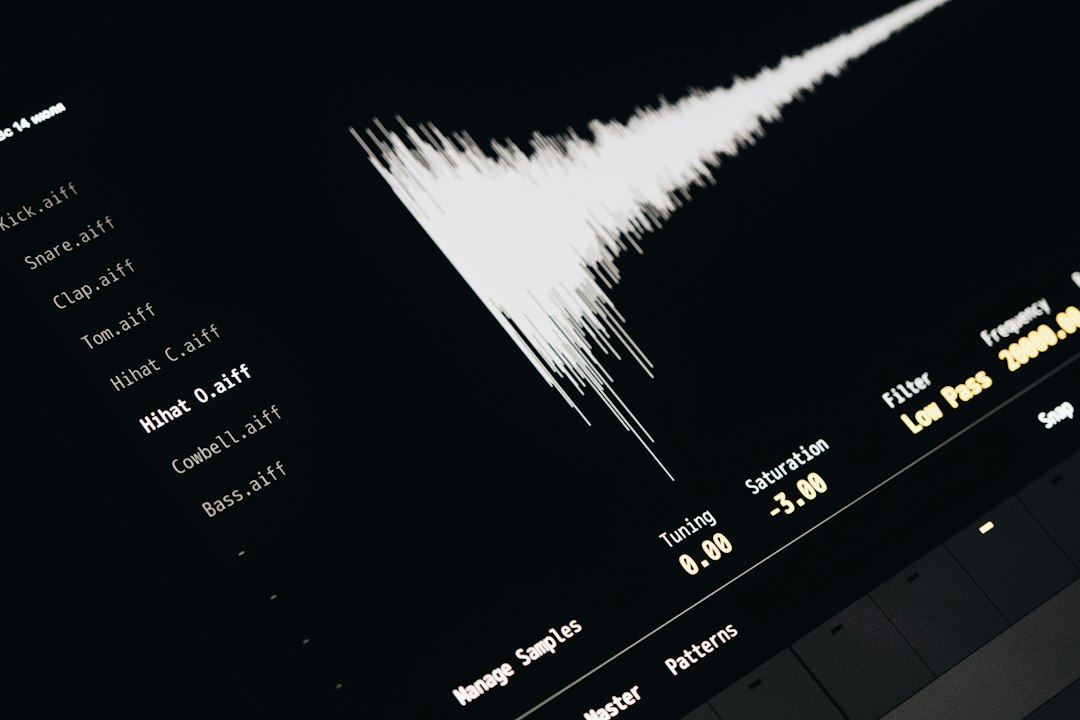
The best way to download SoundCloud audio as WAV is to start with an official download, then convert it with CloudConvert if it is not already a WAV. Audacity is better when the user needs to record, trim, clean, or export audio they are allowed to use. SoundCloud itself recommends lossless upload formats such as WAV, FLAC, AIFF, and ALAC, with a maximum file size of 4 GB [source: SoundCloud].
TLDR: CloudConvert is the faster choice when a user already has a legal audio file and only needs a WAV version. Audacity is better for editing, noise cleanup, and exporting short clips, but it takes more manual work. For example, a podcaster who downloads a permitted 128 kbps MP3 from a creator may convert it to WAV in under a minute with CloudConvert, but the WAV will not magically become studio quality. If the source is compressed, the WAV is mainly a larger editing format, not a quality upgrade.
Contents
What “Downloading SoundCloud as WAV” Really Means
A WAV file is often linked with high-quality sound, but the file extension alone does not prove the audio is pristine. A WAV made from a low-bitrate stream can still sound flat. It may also be huge. A three-minute stereo WAV at 44.1 kHz and 16-bit can be around 30 MB, while an MP3 version may be near 3 MB to 7 MB.
The cleanest route is simple:
- Use the official download button if the artist has enabled it.
- Check the license or permission before saving or reusing the track.
- Convert the downloaded file to WAV only when a WAV is needed for editing, mastering, archiving, or production.
Honestly, it feels like half the confusion comes from tools promising “SoundCloud to WAV” when they are really recording or converting compressed audio. That can be useful, but it is not the same as getting the artist’s original WAV master.
Option 1: Audacity for Recording, Editing, and Exporting WAV
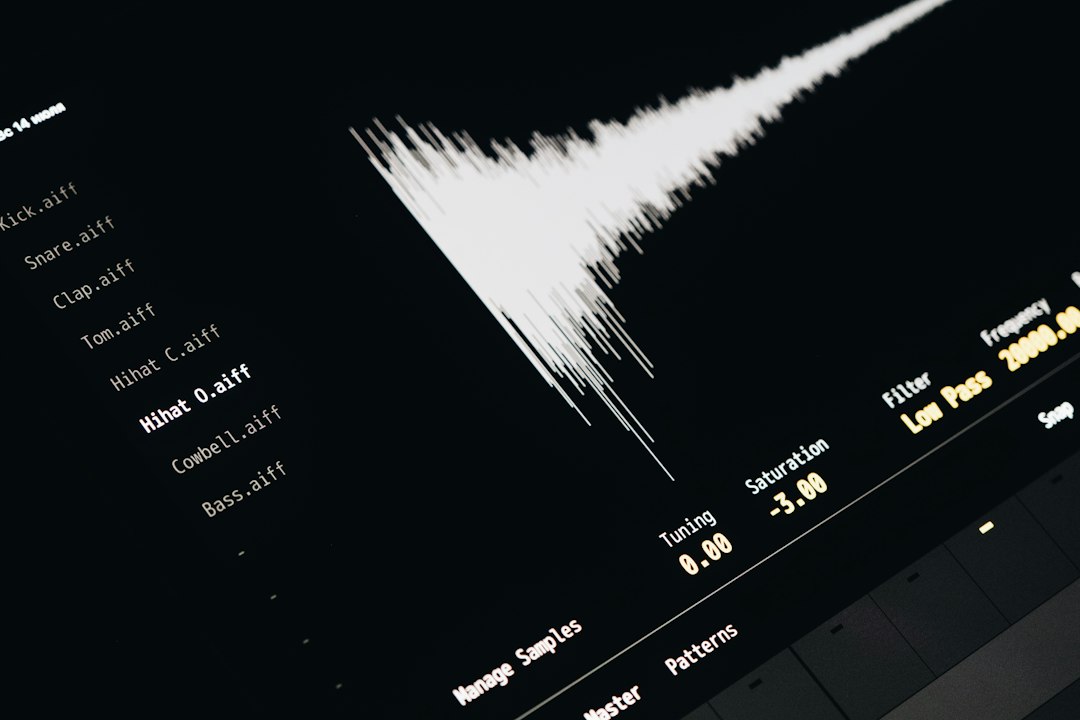
Audacity is a free audio editor. It can record audio from a microphone, interface, or system playback, depending on the computer setup. It can also import audio files and export them as WAV.
Audacity is the better pick when the user needs control. It can cut silence, normalize volume, fade in, fade out, remove light noise, and export to several WAV settings. This helps musicians, editors, teachers, and podcasters who already have permission to use the audio.
Basic Audacity Workflow
- Install Audacity from the official website.
- Open the legal audio file, or set up system recording if local law and platform rules allow it.
- Trim unwanted sections.
- Use Effect tools such as Normalize or Fade Out if needed.
- Choose File > Export Audio.
- Select WAV, then pick 16-bit or 24-bit PCM.
Audacity’s strong point is precision. Its weak point is speed. The setup can be annoying, especially on Windows, where recording desktop audio may require WASAPI loopback. On some laptops, that adds several minutes of device testing before a clean signal appears. Expect to waste time on audio routing if the computer has Bluetooth headphones, virtual devices, or external interfaces attached.
When Audacity Makes Sense
- The user needs to edit a track before saving it.
- The source audio is already on the computer.
- The user wants to export at 44.1 kHz, 48 kHz, 16-bit, or 24-bit.
- The project needs manual cleanup before use.
Audacity does not bypass SoundCloud restrictions. It also does not create true lossless quality from a compressed stream. It can only preserve, process, or repackage what it receives.
Option 2: CloudConvert for Quick File Conversion
CloudConvert is a browser-based converter. It is useful when the user already has an audio file and wants to turn it into WAV without installing software. It supports many audio formats, including MP3, FLAC, AAC, OGG, and WAV.
The workflow is simple:
- Download the SoundCloud track through the official button, if available.
- Open CloudConvert in a browser.
- Upload the audio file.
- Select WAV as the output format.
- Adjust options such as sample rate or channels if needed.
- Convert and download the WAV file.
This works well for users who do not need editing. A social media editor, for example, may receive an approved MP3 from an artist and need WAV for a video editing timeline. CloudConvert handles that job quickly.

The downside is upload time. A 200 MB file can take longer to upload than to convert, especially on weak Wi-Fi. Privacy also matters. Since the file goes to a cloud service, sensitive unreleased music, client work, or private voice audio may be safer in Audacity or another offline editor.
Sound Quality: Which One Wins?
Neither Audacity nor CloudConvert can restore lost quality. If the SoundCloud audio is streamed in a compressed format, exporting it as WAV will not bring back missing high frequencies or fine detail. The WAV may be easier to edit, but it will be much larger.
The best quality order is usually:
- Original WAV from the artist — best choice.
- Original FLAC or AIFF converted to WAV — also excellent.
- Official MP3 download converted to WAV — useful, but not truly lossless.
- Recorded playback exported to WAV — lowest choice, unless no better permitted source exists.
CloudConvert may be more convenient, but Audacity offers better control over export settings. For most users, the deciding factor is not sound quality. It is whether they need editing or only conversion.
Audacity vs. CloudConvert: Quick Comparison
| Feature | Audacity | CloudConvert |
|---|---|---|
| Best for | Editing and exporting WAV | Fast format conversion |
| Installation | Required | Not required |
| Internet needed | No, after setup | Yes |
| Privacy | Better for local files | Files are uploaded |
| Skill level | Moderate | Easy |
Legal and Practical Use
A user should only download or record SoundCloud audio when they own it, have permission, or the creator has enabled downloads. Some tracks are free to download. Others are not. A remix, DJ set, or sample pack may have its own license terms.
For musicians, the best request is direct: ask the artist for a WAV or FLAC master. For editors, an official file avoids messy audio artifacts. For students, short permitted clips may be enough, but credit and license rules still matter.
Best Recommendation
CloudConvert is the best pick for a quick WAV conversion from an already downloaded file. It is clean, simple, and fast enough for routine work. Audacity is the better pick when editing matters, or when the user wants offline control over the final sound.
The smart workflow is this: get the highest-quality legal source first, then choose the tool. If the source is already clean, CloudConvert is enough. If the audio needs repair, trimming, fades, or loudness changes, Audacity earns its place.
FAQ
Can SoundCloud audio be downloaded directly as WAV?
Sometimes. If the uploader enables downloads and uploaded a WAV, the user may be able to get the original file. If downloads are disabled, the user should not use tools that bypass the creator’s choice.
Does converting MP3 to WAV improve quality?
No. It makes the file larger and easier to edit, but it does not restore audio data lost during MP3 compression.
Is Audacity better than CloudConvert?
Audacity is better for editing and offline work. CloudConvert is better for quick conversion when no editing is needed.
What WAV settings should be used?
For general music work, 44.1 kHz and 16-bit PCM is common. For video, 48 kHz is often preferred. For production, 24-bit WAV gives more headroom during editing.
Is it legal to record SoundCloud playback with Audacity?
Only when the user has the right to do so. That may include their own tracks, licensed material, or audio with clear permission from the creator.

