
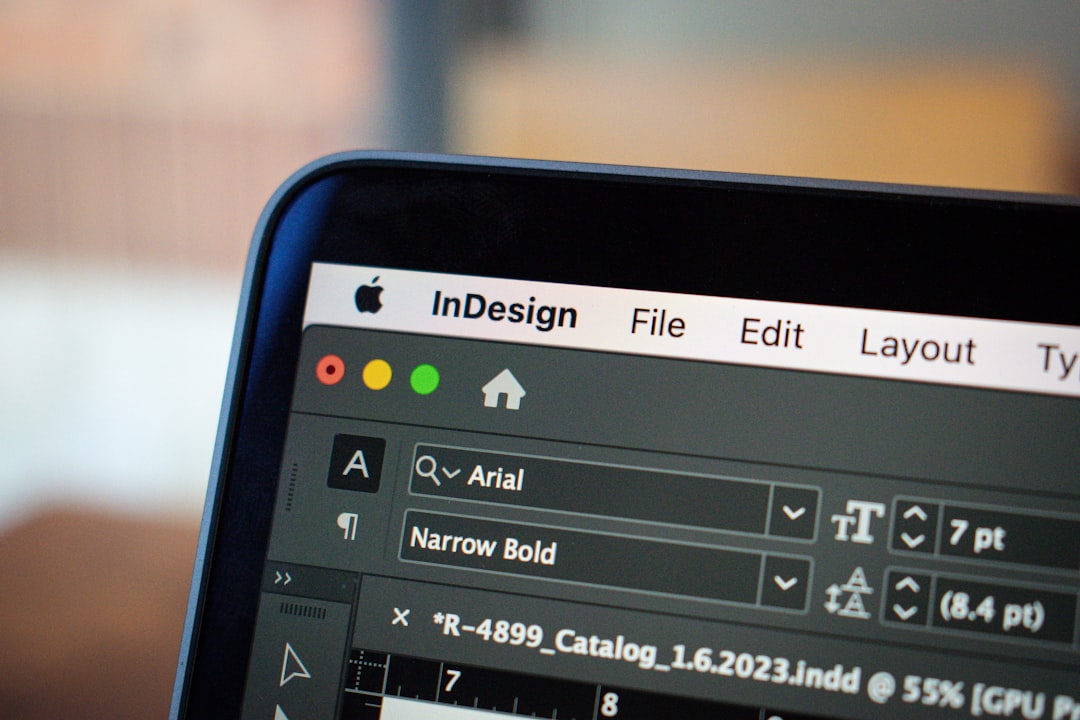
Screen recording software like Camtasia has become an essential tool for educators, trainers, marketers, and business professionals who need to create clear, engaging tutorials. Whether the goal is to onboard new employees, demonstrate software functionality, or build online courses, professional screen capture and editing capabilities allow creators to communicate complex information with precision. Modern tools in this category go far beyond simple recording; they offer advanced editing, interactive elements, and export options that make tutorials both polished and highly effective.
TLDR: Screen recording tools such as Camtasia provide an all-in-one solution for creating professional tutorials, combining screen capture, video editing, and interactive features. They are widely used in education, corporate training, and marketing because they simplify complex explanations into visually clear lessons. The best tools offer high-quality recording, intuitive editing interfaces, and flexible export options. Choosing the right software depends on your workflow, budget, and desired level of production quality.
In today’s digital learning environment, clarity and engagement are critical. Written instructions alone often fail to convey procedures accurately, especially when demonstrating technical workflows. This is where screen recording software becomes indispensable. By capturing live screen activity and pairing it with voice narration, creators can replicate in-person instruction and significantly improve comprehension.
Contents
- 1 What Screen Recording Software Like Camtasia Offers
- 2 Key Advantages for Tutorial Creators
- 3 Common Use Cases
- 4 Core Features to Evaluate
- 5 Best Practices for Creating Effective Tutorials
- 6 Comparing Screen Recording Solutions
- 7 Security and Compliance Considerations
- 8 The Role of Screen Recording in Modern Learning
- 9 Conclusion
What Screen Recording Software Like Camtasia Offers
At its core, software similar to Camtasia provides two primary capabilities:
- Screen capture – Recording all or part of the computer display.
- Video editing – Refining footage into a structured, professional tutorial.
However, modern platforms extend far beyond basic recording. Advanced features often include:
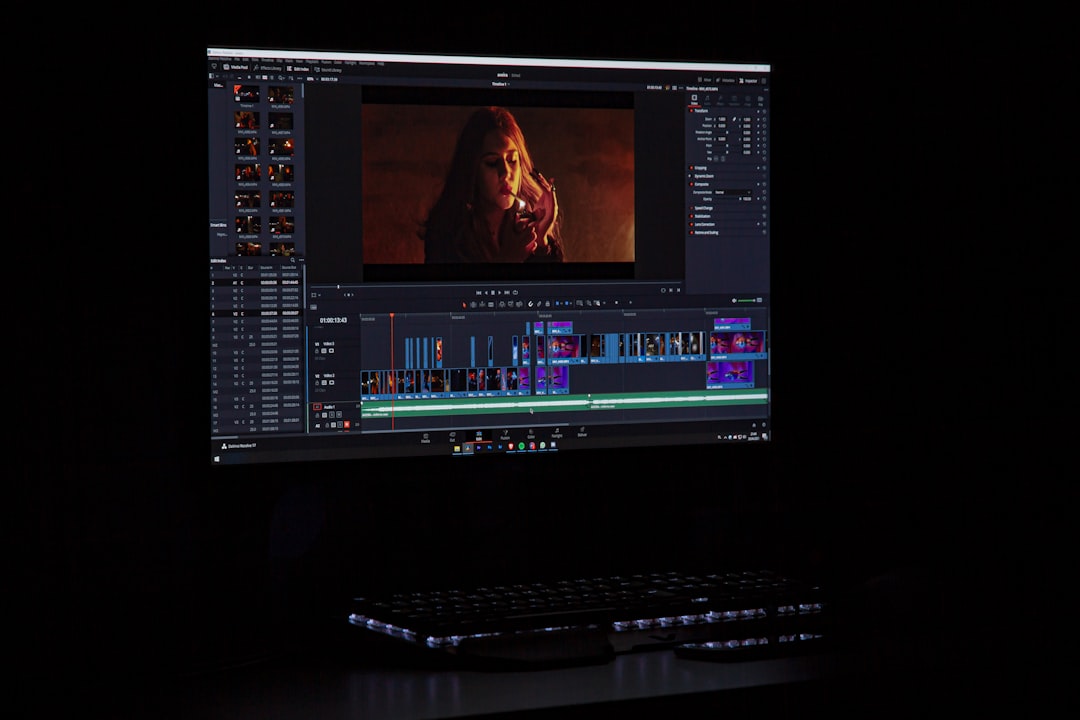
- Multi-track timeline editing for layering video, audio, and visual effects.
- Annotations and callouts to highlight important on-screen elements.
- Cursor effects that emphasize clicks and movements.
- Quizzes and interactive elements for e-learning modules.
- Library assets such as music, transitions, and templates.
These capabilities allow creators to deliver content that not only informs but also maintains viewer attention throughout the lesson.
Key Advantages for Tutorial Creators
1. Improved Clarity
Visual demonstration eliminates ambiguity. Instead of describing each step of a process, instructors can show it in real time. Viewers see exactly where to click, what settings to adjust, and how outcomes appear on screen. This visual reinforcement greatly reduces misunderstandings.
2. Professional Production Quality
Software like Camtasia includes built-in editing tools that elevate production value. Even creators with minimal video editing experience can produce polished results through intuitive interfaces. Features such as transitions, zoom effects, and background noise removal help tutorials look and sound professional.
3. Efficiency in Content Creation
Instead of relying on multiple applications for capture and editing, an integrated solution streamlines workflow. Recording, trimming mistakes, adding annotations, and exporting can all happen within a single environment. This efficiency reduces production time while maintaining high quality.
4. Scalability for Organizations
For businesses and educational institutions, scalable training materials are essential. Once a tutorial is created, it can be distributed to hundreds or thousands of learners without additional instructor time. Updates can be recorded and edited quickly, ensuring training materials remain current.
Common Use Cases
Screen recording tools are remarkably versatile. They support a wide range of professional applications:
- Corporate training: Software onboarding, compliance instruction, workflow demonstrations.
- Academic instruction: Online lectures, assignment guidance, digital whiteboard explanations.
- Technical support: Step-by-step troubleshooting guides for customers.
- Marketing demonstrations: Product walkthrough videos highlighting features and benefits.
- Internal documentation: Process documentation for operational consistency.
Each use case benefits from the ability to combine clear narration with visible on-screen action.
Core Features to Evaluate
When selecting screen recording software similar to Camtasia, decision-makers should evaluate several critical components.
Recording Capabilities
High-resolution capture is essential. Look for software that records:
- Full screen, selected region, or specific windows.
- System audio and microphone input simultaneously.
- Webcam video for picture-in-picture presentation.
Frame rate stability and audio clarity should not be overlooked, as poor quality recordings undermine credibility.
Editing Flexibility
A timeline-based editor allows precise control over content. Important functions include:
- Cutting and trimming clips.
- Adding transitions between segments.
- Layering text overlays and callouts.
- Applying zoom and pan animations.
Professional tutorials rely heavily on these adjustments to maintain pacing and clarity.
Annotation and Visual Enhancement Tools
Annotations guide the viewer’s focus. Arrows, highlights, and text boxes emphasize essential steps. Cursor smoothing and click animations clarify interactions, especially in software demonstrations.
Export and Sharing Options
Reliable export formats are crucial for compatibility. The software should support:
- High-definition video export.
- Optimized formats for learning management systems.
- Direct upload to video hosting platforms.
File size optimization without sacrificing clarity is equally important, particularly for organizations distributing large training libraries.
Best Practices for Creating Effective Tutorials
Even the most advanced software cannot compensate for poor instructional planning. Effective tutorials follow structured best practices:
1. Outline Before Recording
Create a script or bullet-point outline. This ensures logical flow and reduces recording errors. Structured lessons feel more confident and professional.
2. Keep Segments Concise
Rather than producing a single lengthy video, divide content into shorter modules. Shorter segments improve retention and make updates easier to manage.
3. Use Visual Emphasis Strategically
Zoom effects and callouts should highlight key actions, not overwhelm the viewer. Overuse can distract from the core message.
4. Prioritize Audio Quality
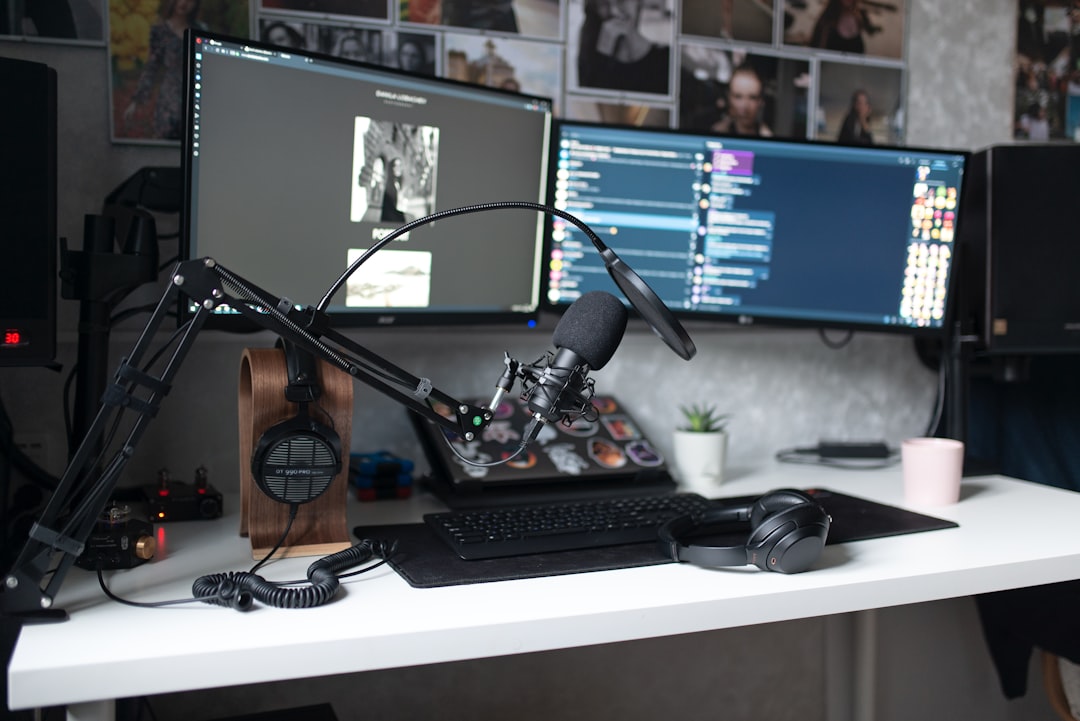
Clear narration builds credibility. Use a dedicated microphone and record in a quiet environment. Most professional screen recording tools include noise reduction features, but starting with clean audio is always preferable.
5. Review and Edit Thoroughly
Edit out mistakes, hesitation, and long pauses. Adjust pacing to maintain engagement. A tutorial should feel deliberate and smooth.
Comparing Screen Recording Solutions
While Camtasia is widely recognized, other software options offer similar functionality. Differences typically appear in:
- Learning curve: Some tools are designed for beginners, others for advanced editors.
- Pricing structure: One-time licenses versus subscription models.
- Platform compatibility: Availability on Windows, macOS, or both.
- Advanced capabilities: Motion graphics, interactive quizzes, or automation features.
Organizations should assess internal skill levels and long-term content strategies before committing to a specific platform.
Security and Compliance Considerations
In corporate environments, screen recordings may display sensitive information. Professional-grade software should provide basic security features such as:
- Password-protected outputs (if supported through export platforms).
- Secure integration with enterprise systems.
- Controlled sharing permissions.
Training departments should also implement internal review procedures to ensure no confidential data is inadvertently recorded or distributed.
The Role of Screen Recording in Modern Learning
As remote and hybrid work environments continue to expand, asynchronous learning has become the standard. Screen recording software empowers subject matter experts to document processes once and distribute them widely. This not only saves time but ensures consistency in messaging across departments and geographic regions.
Unlike live training sessions, recorded tutorials allow learners to pause, rewind, and revisit material at their own pace. This autonomy significantly improves comprehension and accommodates diverse learning preferences.
Furthermore, analytics available through hosting platforms often provide insights into viewer engagement, enabling trainers to refine and improve future content.
Conclusion
Screen recording software like Camtasia represents a comprehensive solution for professional tutorial creation. By combining high-quality capture, robust editing tools, and flexible distribution options, these platforms make it possible to transform complex processes into accessible learning experiences.
For educators, corporate trainers, and technical professionals, investing in reliable screen recording software is not merely a convenience—it is a strategic decision. Clear, well-produced tutorials enhance understanding, reduce support burdens, and strengthen organizational efficiency. As digital communication continues to dominate professional environments, the ability to create authoritative and engaging screen-based instruction remains an indispensable skill.

