
Instagram is awesome. Until it isn’t. One minute you are ready to post your latest masterpiece. The next minute, you see the dreaded “Video Source Audio Stream Check Exception” error. Annoying, right? Don’t worry. This guide will walk you through what it means, why it happens, and exactly how to fix it in simple steps.
TL;DR: The “Video Source Audio Stream Check Exception” error usually happens because of a corrupted audio track, unsupported format, or export settings issue. Fix it by re-exporting your video, converting the file format, checking audio codecs, or updating your app. You can also use video repair tools if the file is damaged. Most fixes take less than 10 minutes.
Contents
- 1 What Does This Error Even Mean?
- 2 Why Does This Happen?
- 3 Quick Fixes You Should Try First
- 4 Fix #1: Re-Export the Video (Most Effective)
- 5 Fix #2: Convert the Video Using a Converter Tool
- 6 Fix #3: Remove and Re-Add the Audio Track
- 7 Fix #4: Check for File Corruption
- 8 Fix #5: Transfer the File Again
- 9 Fix #6: Record Directly in Instagram
- 10 Prevent This Error in the Future
- 11 Advanced Explanation (If You’re Curious)
- 12 Common Mistakes to Avoid
- 13 When Nothing Works
- 14 Final Thoughts
What Does This Error Even Mean?
Let’s break it down.
Instagram checks your video before uploading. It looks at:
- The video format
- The resolution
- The frame rate
- The audio stream
If something is wrong with the audio stream, Instagram stops the upload. That’s when you see the error.
In simple words: Instagram doesn’t like something about your video’s sound settings.
Why Does This Happen?
There are a few common reasons.
- Unsupported audio codec (Instagram prefers AAC)
- Corrupted video file
- Missing audio stream metadata
- Export settings set too high or unusual
- Outdated Instagram app
- File damaged during transfer
Sometimes the video looks perfectly fine. It even plays on your phone. But Instagram is picky.
Quick Fixes You Should Try First
Before diving deep, try these quick wins.
1. Restart Instagram
Close the app completely. Not just minimize it. Then reopen it.
2. Restart Your Phone
It sounds basic. But it works surprisingly often.
3. Update Instagram
Go to the App Store or Google Play. Install the latest version.
4. Check Your Internet
Slow or unstable internet can interrupt file verification.
If none of these work, don’t panic. We’re just getting started.
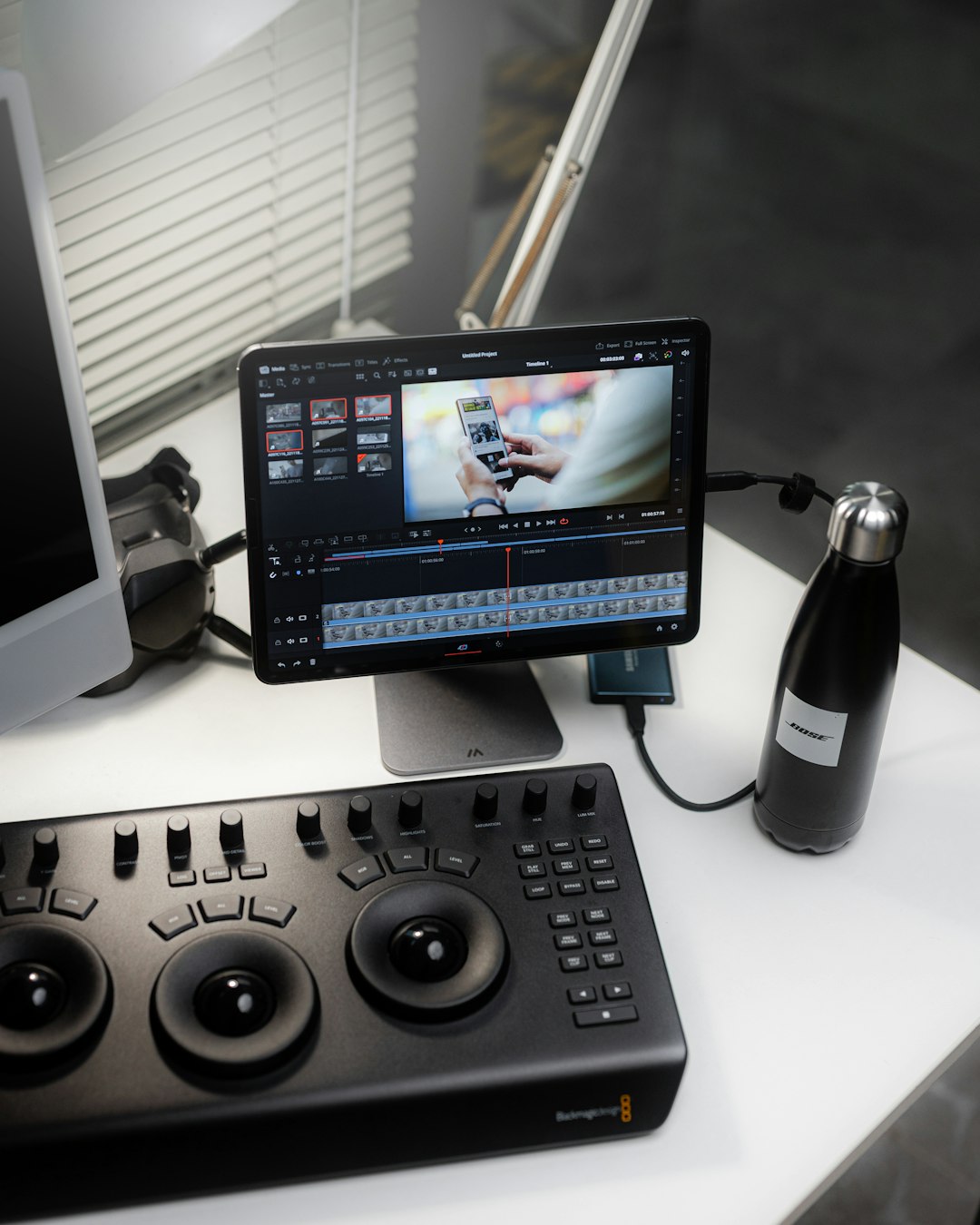
Fix #1: Re-Export the Video (Most Effective)
This is the solution that fixes the problem most of the time.
Open the original project in your editing app. Then export it using Instagram-friendly settings.
Best export settings for Instagram:
- Format: MP4
- Video codec: H.264
- Audio codec: AAC
- Resolution: 1080×1920 (for Reels)
- Frame rate: 30fps
- Audio bitrate: 128–320 kbps
Do not use unusual settings like PCM or Dolby audio. Keep it simple.
After exporting, try uploading again.
Fix #2: Convert the Video Using a Converter Tool
If re-exporting isn’t possible, use a video converter.
A converter rewrites the file structure. This often fixes hidden audio stream problems.
Here are some popular tools:
| Tool | Platform | Free Version | Best For |
|---|---|---|---|
| HandBrake | Windows, Mac | Yes | Advanced control |
| VLC Media Player | Windows, Mac | Yes | Quick conversions |
| Adobe Media Encoder | Windows, Mac | No | Professional exports |
| CloudConvert | Web based | Limited free | No software install |
Tip: Always convert to MP4 with AAC audio.
This ensures Instagram can read your file properly.
Fix #3: Remove and Re-Add the Audio Track
Sometimes the audio track itself is corrupted.
Here’s what you can do:
- Open your video in your editor.
- Detach or delete the audio track.
- Export the video without audio.
- Re-import the video.
- Add fresh audio (or keep it silent).
- Export again using AAC.
This rebuilds the audio stream from scratch.
Fix #4: Check for File Corruption
If your phone or camera shut down while recording, the file might be damaged.
Signs of corruption:
- Video freezes randomly
- Audio cuts out
- File size looks unusually small
You can try video repair tools like:
- Stellar Repair for Video
- Wondershare Repairit
- Fix.Video (web based)
These tools rebuild broken file structures.
Fix #5: Transfer the File Again
If you used AirDrop, USB, or cloud storage, the file may not have transferred correctly.
Try:
- Re-uploading from your cloud drive
- Using a different cable
- Compressing into ZIP before transfer
Small transfer glitches can damage metadata.
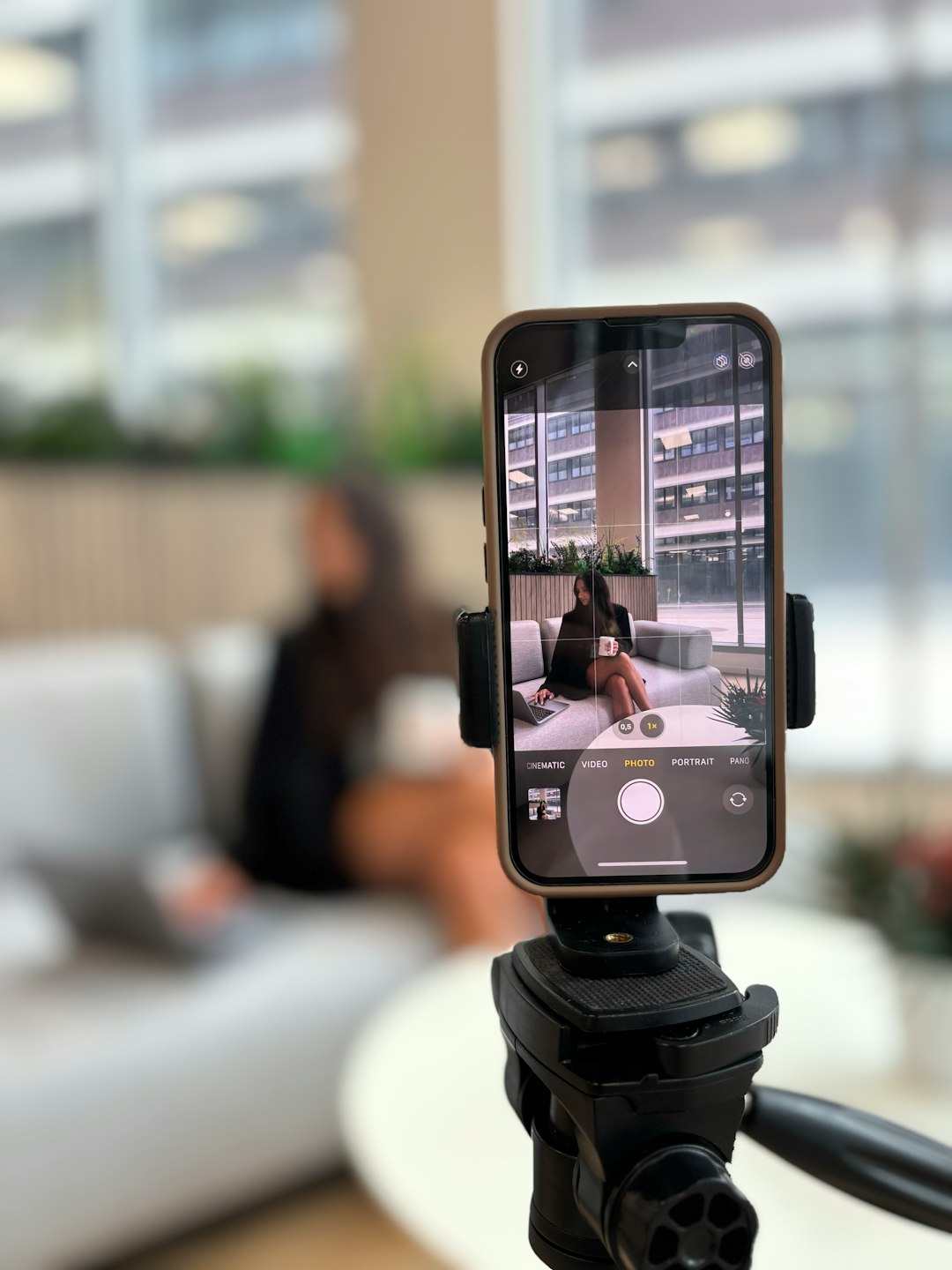
Fix #6: Record Directly in Instagram
Need a quick workaround?
Upload your video into Instagram’s editor instead of posting directly from your gallery.
Even better, record directly in the app.
Instagram automatically formats everything correctly.
Prevent This Error in the Future
Prevention is easier than fixing.
Follow these simple rules:
- Always export as MP4 (H.264 + AAC)
- Keep frame rate between 24–30fps
- Avoid exotic audio formats
- Don’t exceed Instagram’s file size limits
- Keep your editing apps updated
- Use reliable storage devices
Simple settings. Fewer problems.
Advanced Explanation (If You’re Curious)
Instagram parses the container file. That means it reads the internal structure.
Inside an MP4 file are streams:
- Video stream
- Audio stream
- Metadata
If the audio stream:
- Uses an unsupported codec
- Has mismatched timestamps
- Contains corrupted frames
- Is missing index data
The platform throws the exception.
That’s all the scary terminology means.
Common Mistakes to Avoid
- Uploading MOV files with unusual audio formats
- Using screen recorders with default PCM audio
- Exporting at 60fps with high bitrate
- Editing on multiple apps before exporting
- Applying too many audio effects
Keep the workflow clean and simple.
When Nothing Works
If you’ve tried everything:
- Upload from another device
- Log out and back in
- Clear Instagram cache (Android)
- Reinstall the app
As a last resort, contact Instagram support.
It’s rare. But sometimes the issue is on their side.
Final Thoughts
The “Video Source Audio Stream Check Exception” sounds scary. It isn’t.
It simply means Instagram doesn’t like something about your video’s sound settings.
Most of the time, re-exporting the video with correct settings fixes everything.
Remember:
- MP4
- H.264
- AAC audio
- 30fps
Stick to these golden rules.
Now go upload that Reel. Your audience is waiting.

